How to Create Notes
With Notes in Houzz Pro, you can ensure that no information – no matter how small – slips through the cracks. Notes allows you to save important information about a potential or existing project exactly where you need it.
You can add an internal note in several different places:
- Within a project under the Notes tab
- Within a lead under the Notes section
- Within a message
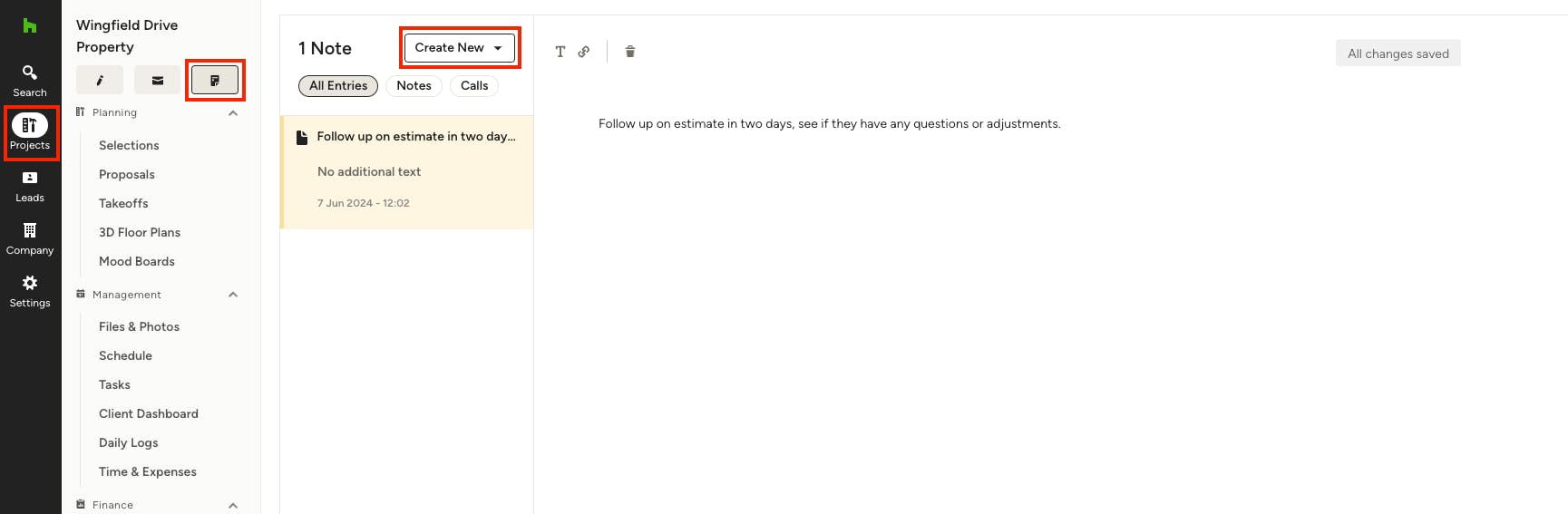
Add a Note to a Project
If you’d like to create a note that's relevant for the entire project, you can do this in the Notes tab.
Click the Projects icon from the left navigation, then select the relevant project. In the top menu for that project, click on the Notes icon.
Type your note into the text box. There are text formatting options if you would like to bold, italicise or underline text, and you can add bullets or a numbered list to create a to-do list. You can also add a link if needed.
Any changes added to notes will auto-save. You can view all your existing notes in the Notes section.
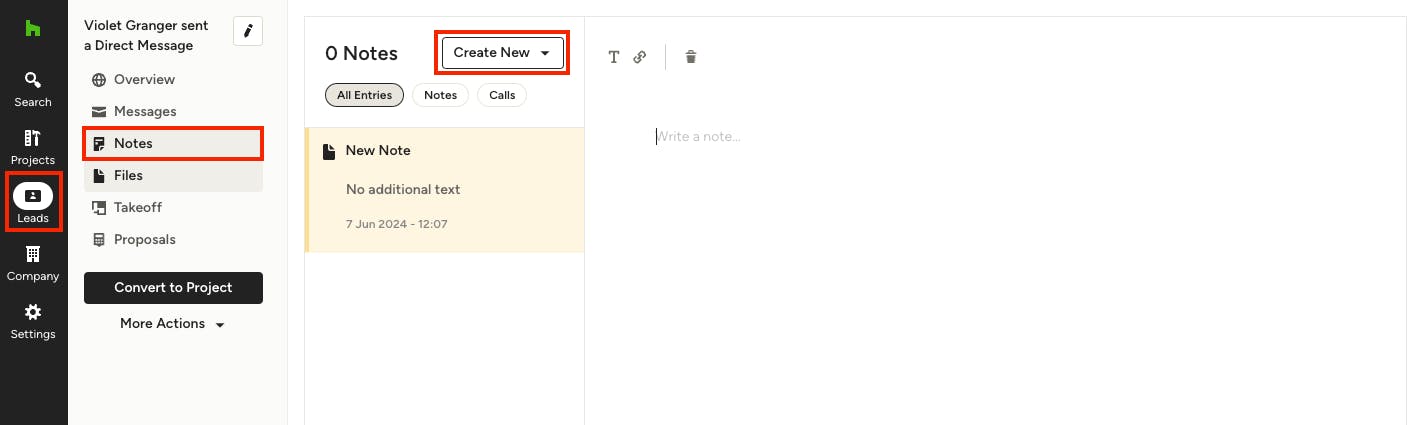
Add a Note to a Lead
If you’d like to add a note to a lead, you can do this in the Notes section.
To add to a lead, click the Leads icon from the left navigation, then select the relevant lead. In the left menu for that lead, click on Notes.
Type your note into the text box. There are text formatting options if you would like to bold, italicise or underline text, and you can add bullets or a numbered list to create a to-do list. You can also add a link if needed.
Any changes added to notes will auto-save. You can view all your existing notes in the Notes section.
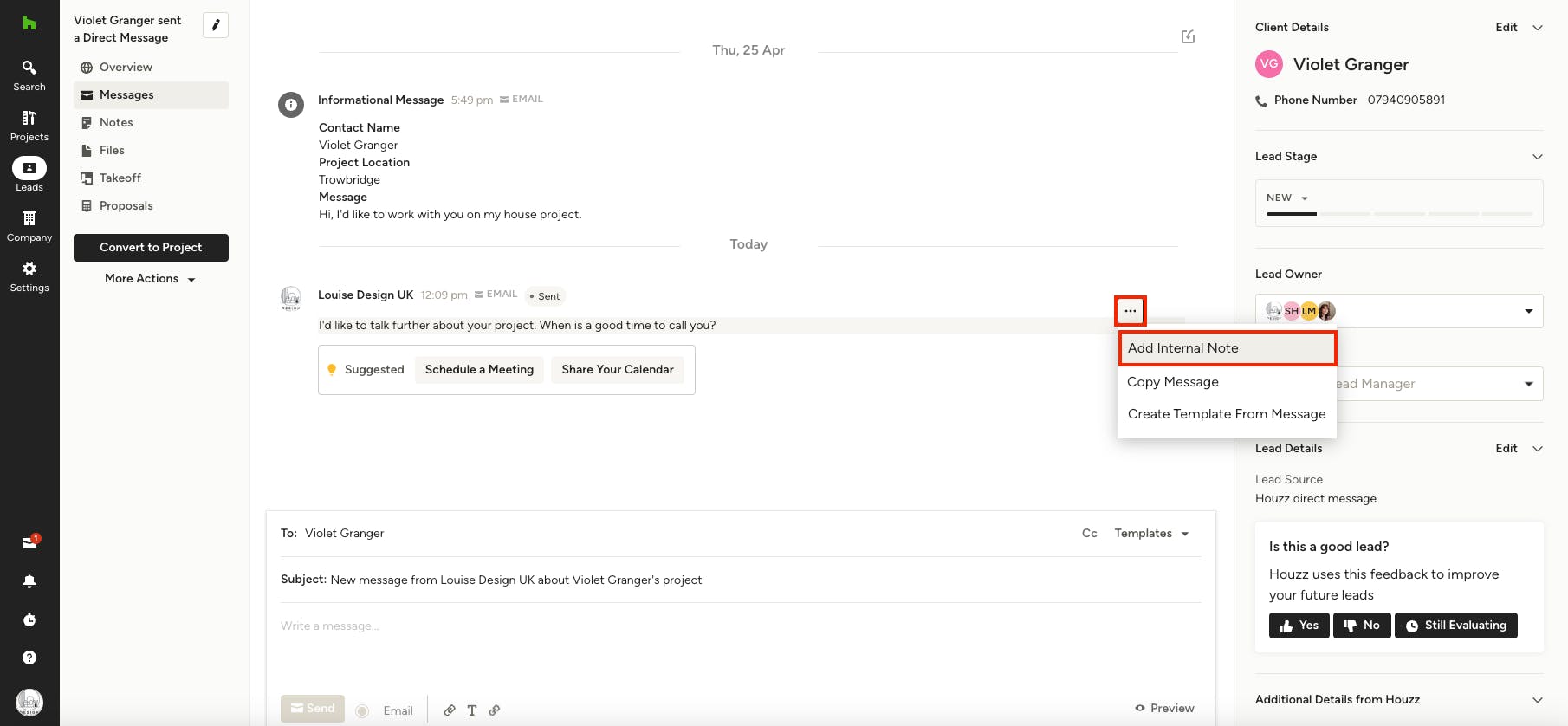
Add a Note to a Message
If you'd like to attach a note to a specific message from your client or lead, you can do this in the Messages tab. This note will be visible only to you and your team.
To add a note to a message, navigate to a Project or Lead, click the Message icon or menu item, then click on the three dots icon for the individual message. Select Add Internal Note from the dropdown.
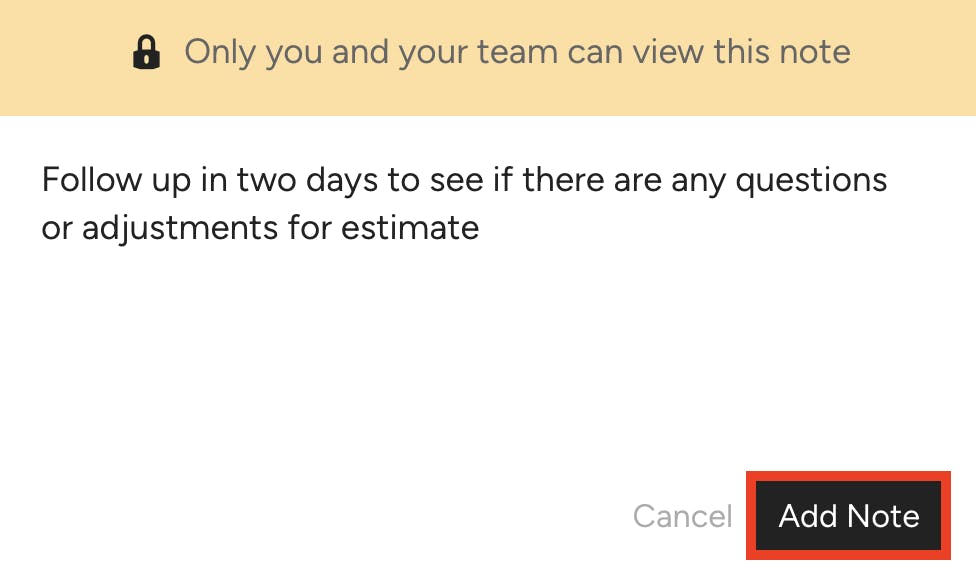
A box with a yellow header will appear. Type your note in the text box and make sure to click Add Note once complete.
You’ll see your note attached to the message. You can also access your note under the Notes section – the note will link back to the original message.
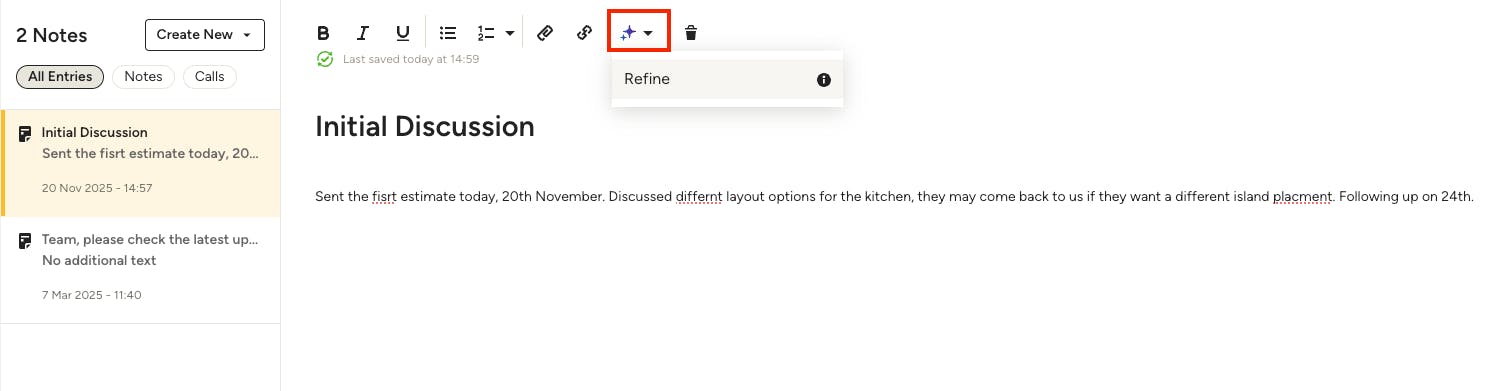
Use AI in Notes
To help speed up the note creation process, Houzz Pro offers the option to quickly improve your notes using our AI, AutoMate.
Refine with AutoMate will take your written note summary, analyse the text, and provide suggestions to improve clarity and formatting. It will even fix spelling, grammar and punctuation issues so all your company communication is polished and professional.
To use this feature, type your text into the relevant note, then click the purple AutoMate button. Select Refine to see the suggestions.
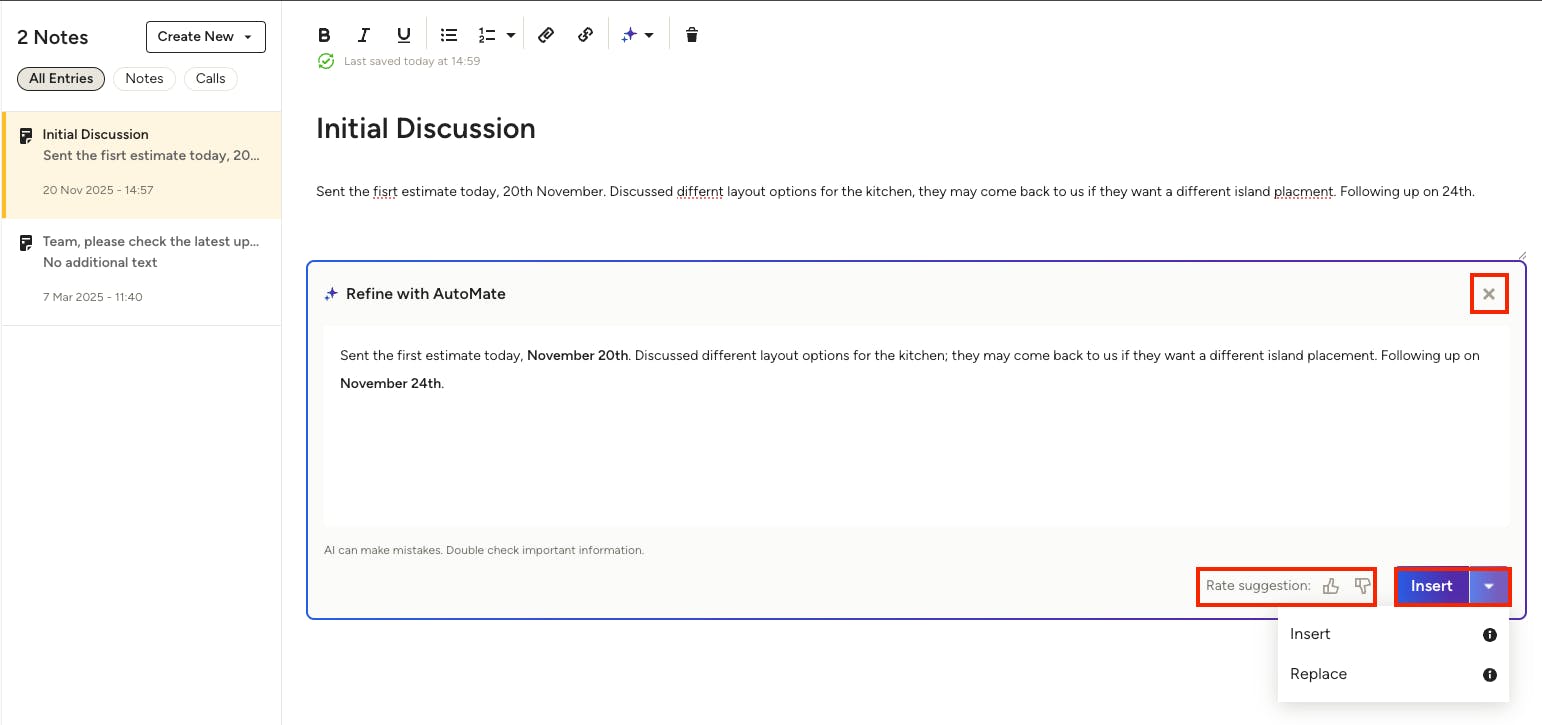
Underneath your original text, a new Refine with AutoMate text box will appear with the suggested changes.
Review the text to see the improvements – at the bottom of the text box, you can select the thumbs up or thumbs down button to give feedback on the quality of the AutoMate suggestion. For next steps, you can:
- Close: Click the X at the top of the box to keep your existing text and ignore the suggestions.
- Insert: Insert the suggested text below your existing text in the editor. This allows you to compare and make specific changes as needed.
- Replace: Completely replace the existing text with the suggested text in the editor.