How to Use the Generic Items Library in Houzz Pro
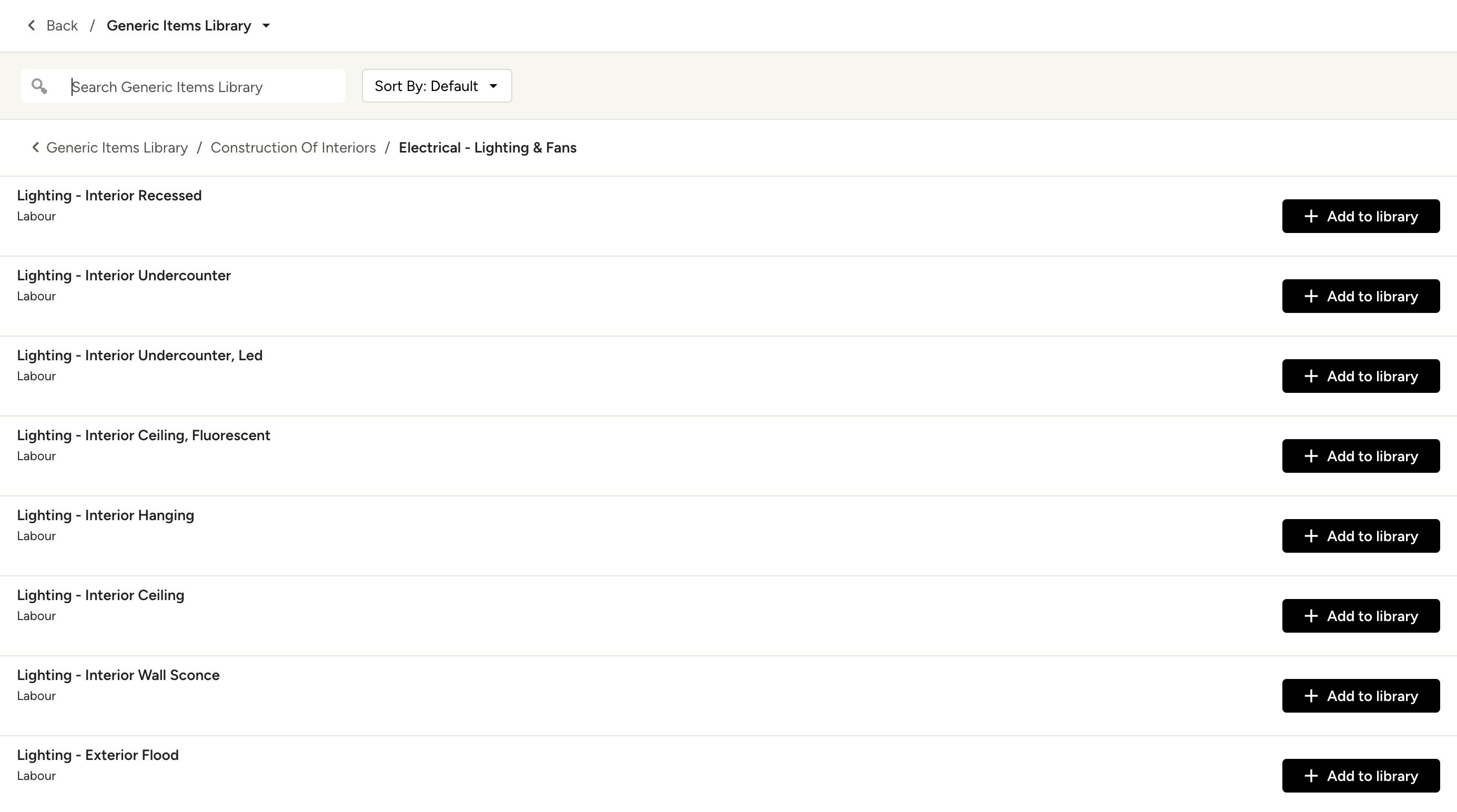
As you start working on a project, building out financial documents can be a time-consuming, manual task. To simplify your workflow, we have integrated a Generic Items Library into the Houzz Pro software.
The Generic Items Library is currently only available to Builder accounts. It is a list of hundreds of material and labour line items that you can use as placeholders when creating an estimate, invoice, change order or purchase order. You can manually adjust the price of each line item once they are added to your document.
You can quickly access the Generic Items Library in several ways throughout Houzz Pro.
Add Items from Generic Items Library
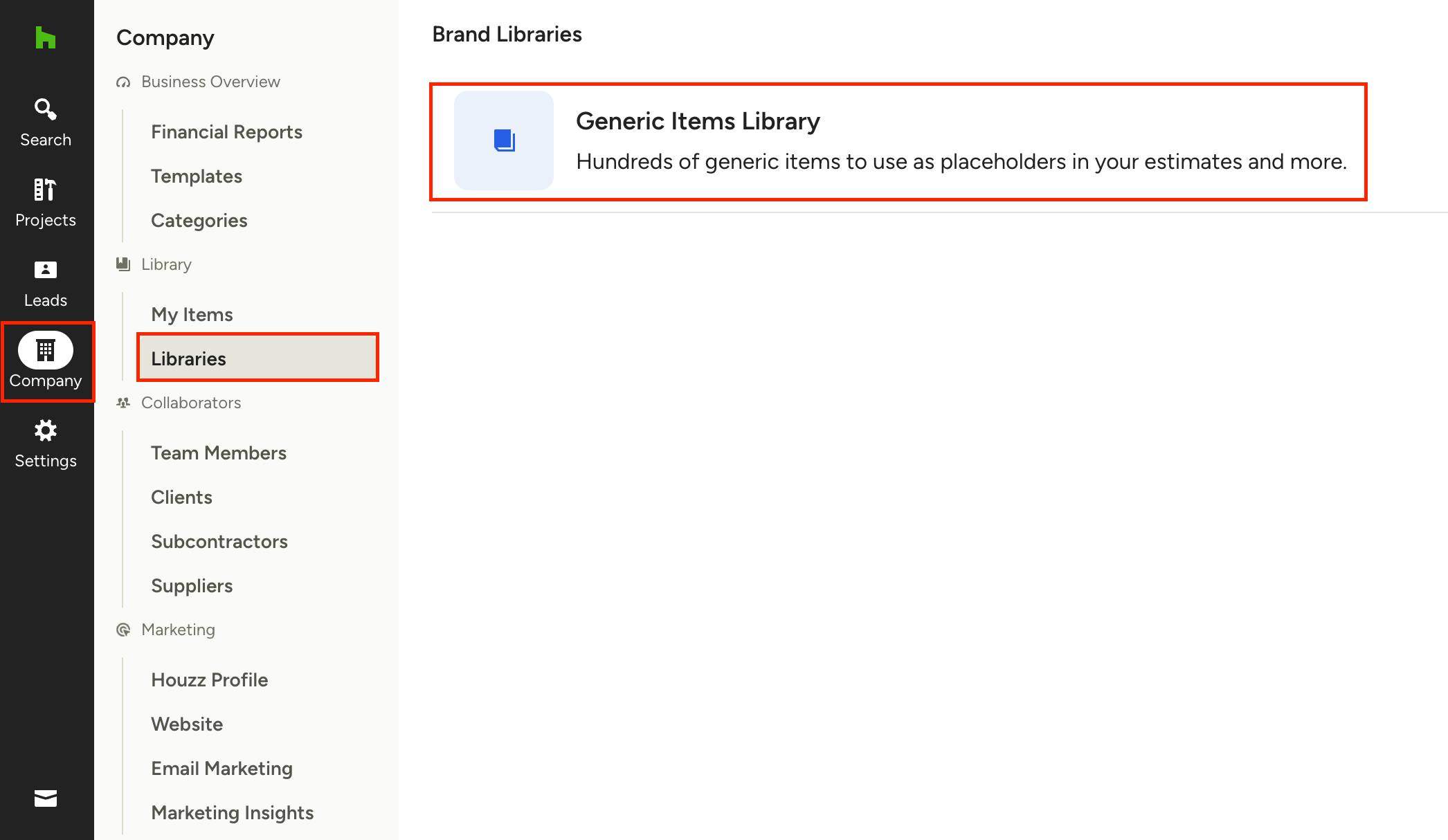
If you would like to access and browse the entire Generic Items Library, select the Company icon in your left navigation, then select Libraries from the menu. Select Generic Items Library section to view.
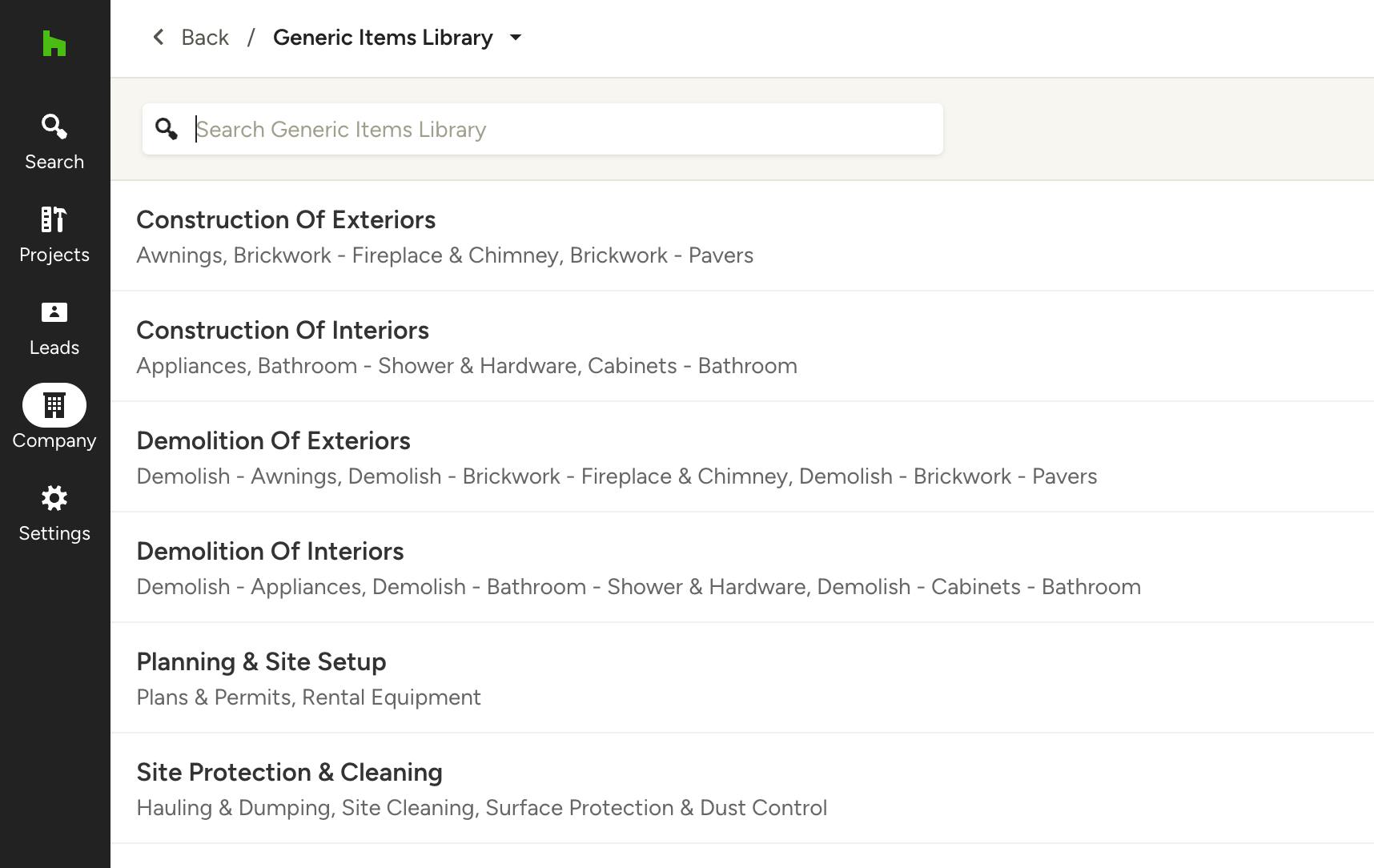
From here, a list of project categories will appear, as well as a search bar at the top of the page. Use these to navigate to relevant line items and find the ones you need.
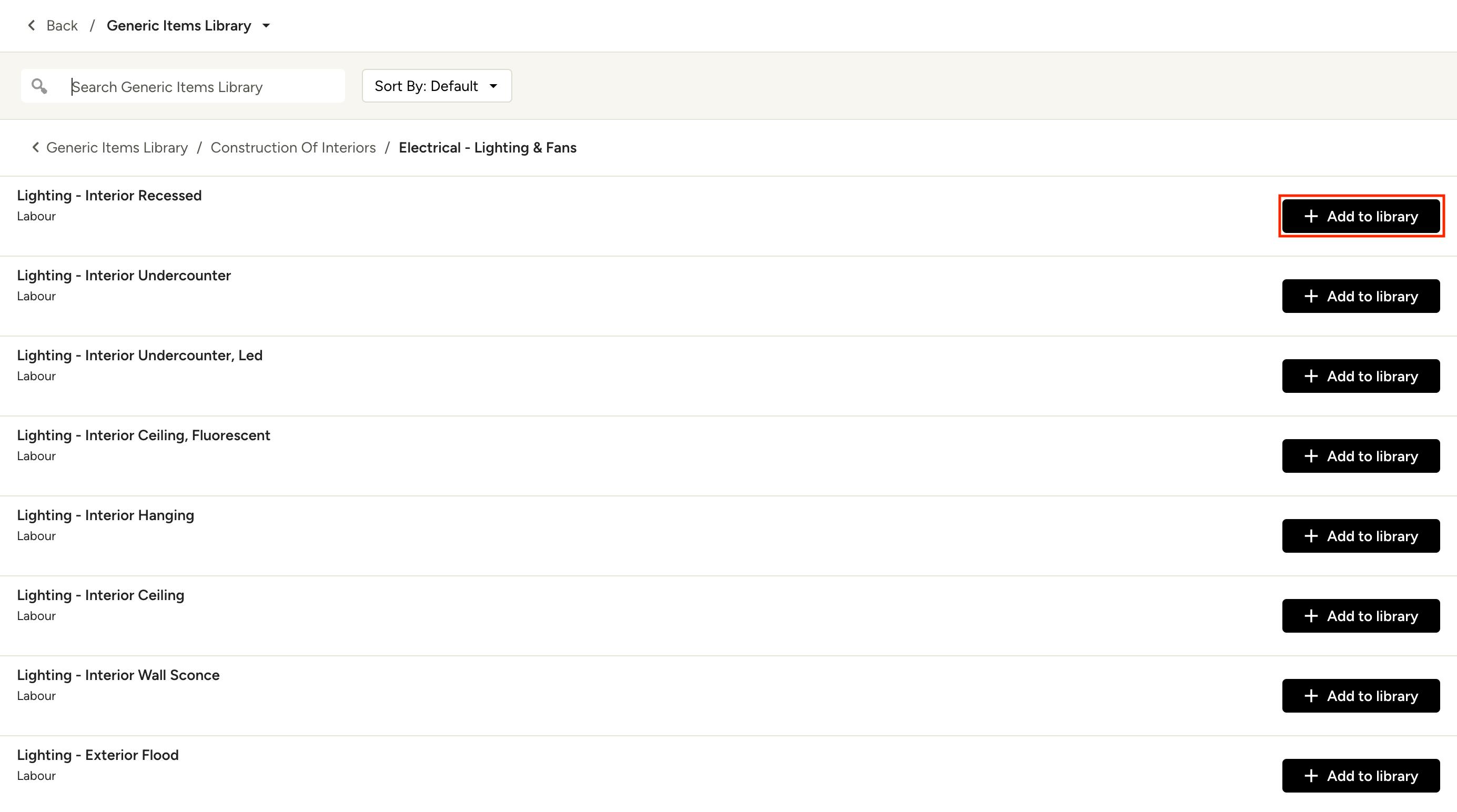
Once you have selected a specific project category (like Electrical - Lighting & Fans below), find the relevant line item and select the Add to library button to save the item.
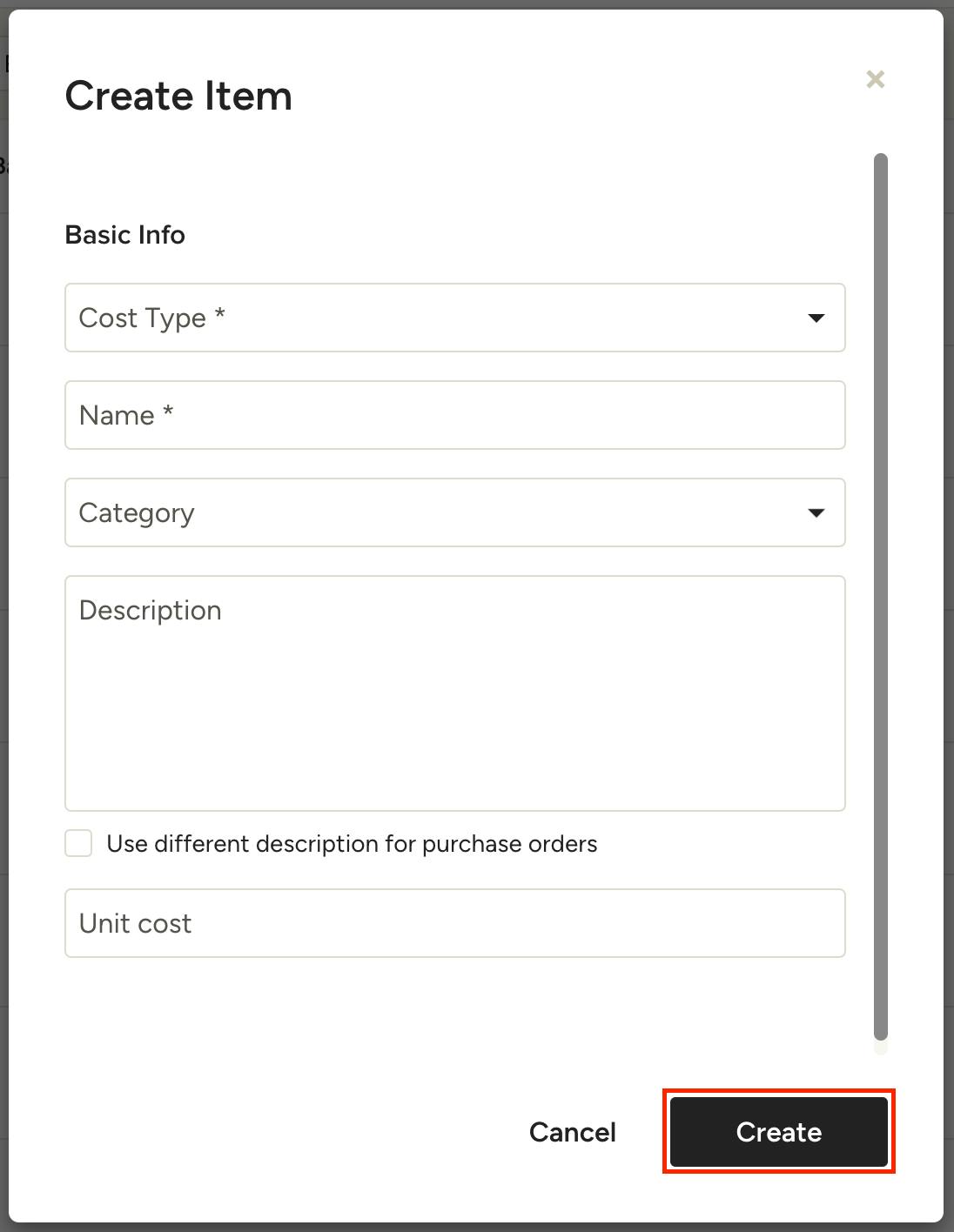
A new screen will appear where you can input basic information, such as cost type, name, category, description, and more. Input the relevant information, then click Create.
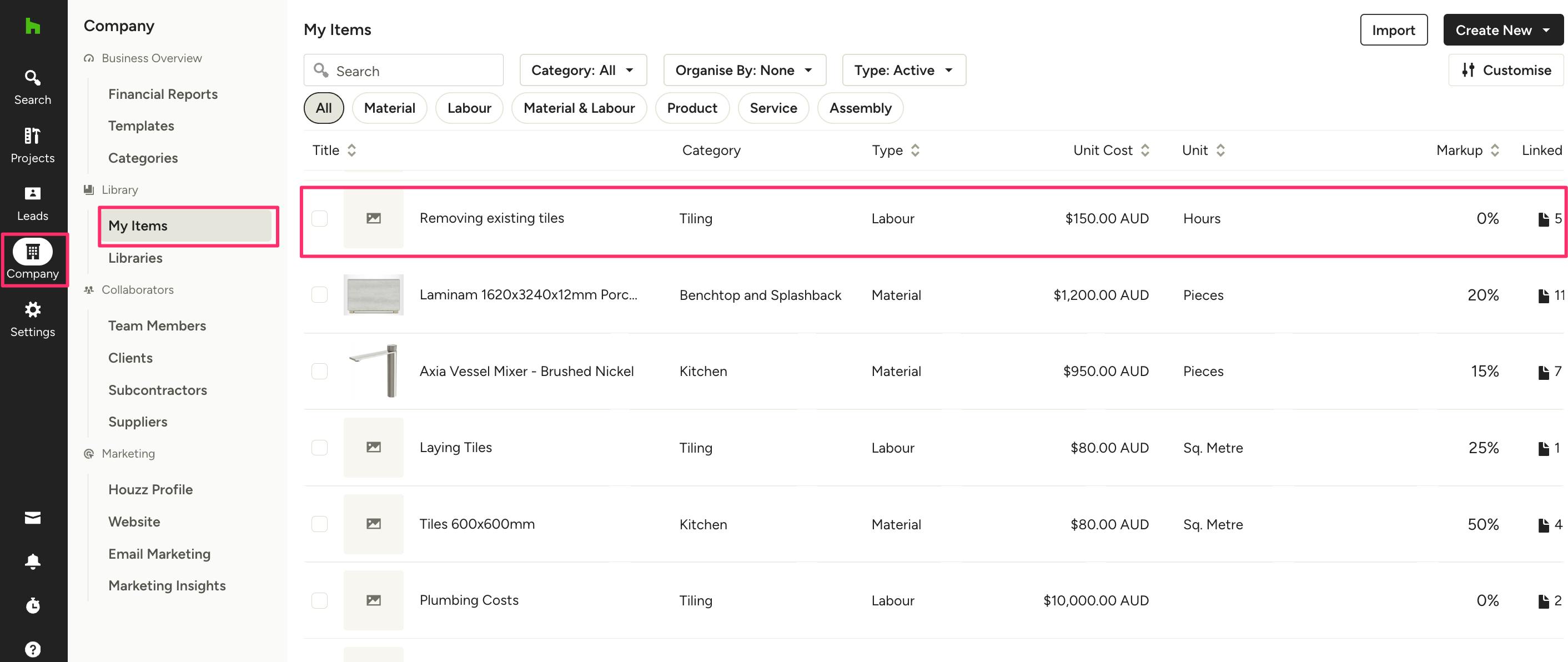
Once saved to your library, that material or labour item will appear in the My Items section of your account for quick access for future projects.
Add Items to Financial Documents
Generic Items Library items will automatically be available to add within your estimates, invoices, variation orders, and purchase orders.
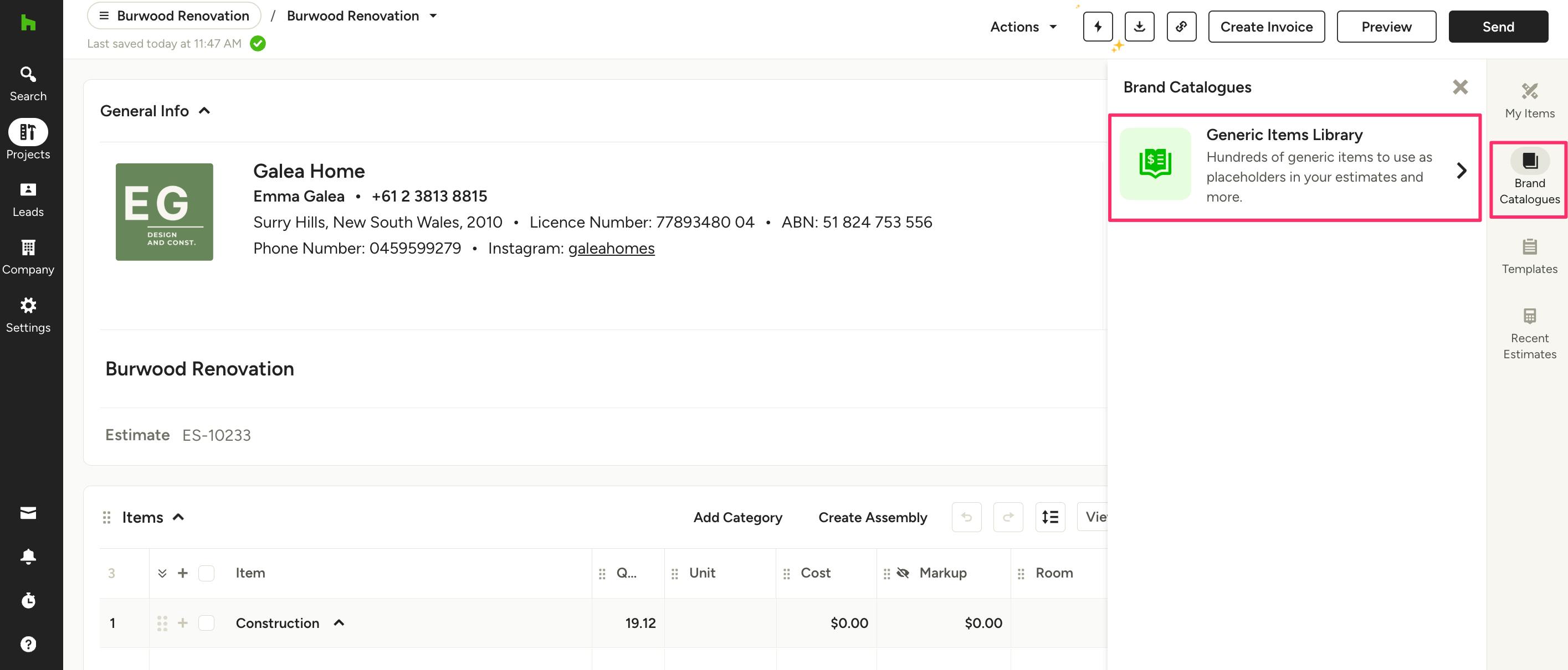
To start, open up a new or existing document. From the right menu, select Brand Catalogues, then select Generic Items Library.
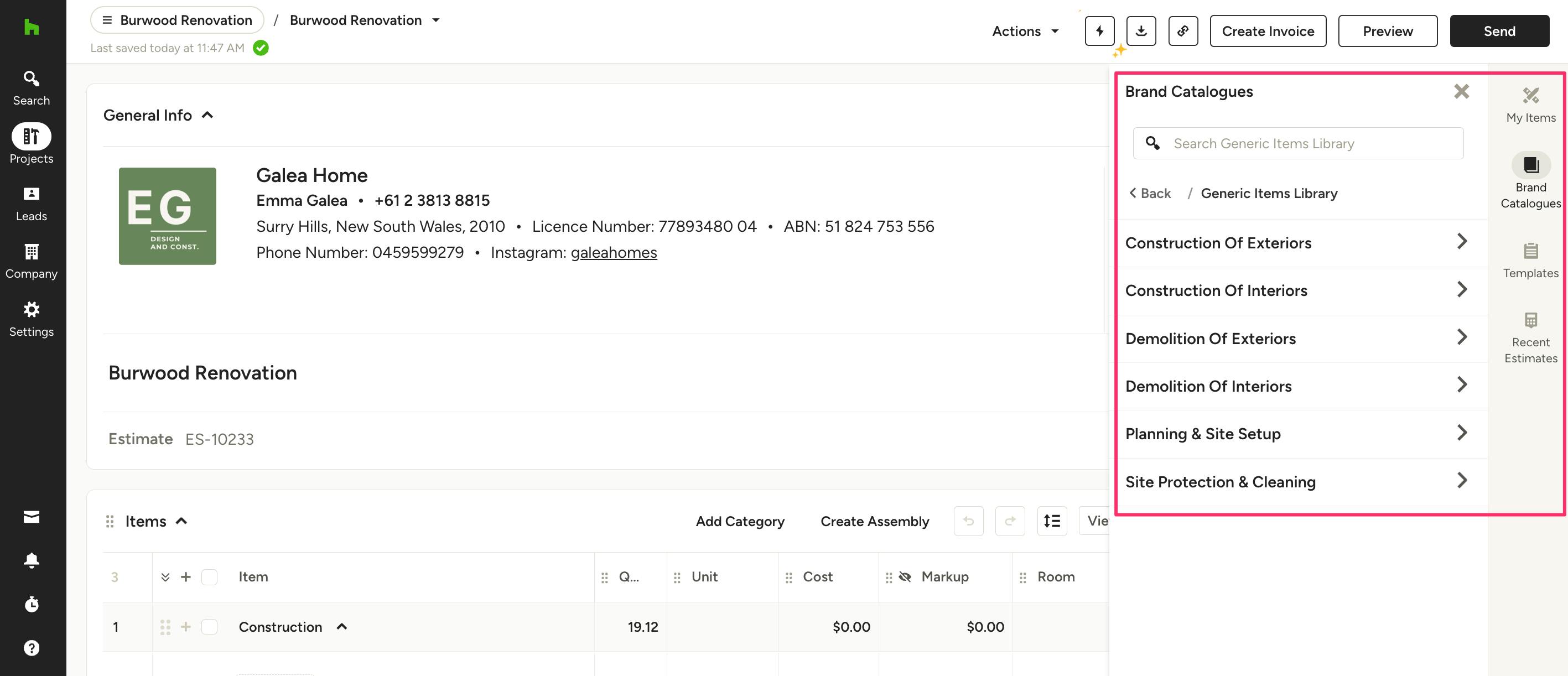
A list of project categories will appear, as well as a search bar at the top of the page. Use these to navigate to relevant material and labour line items and find the ones you need.
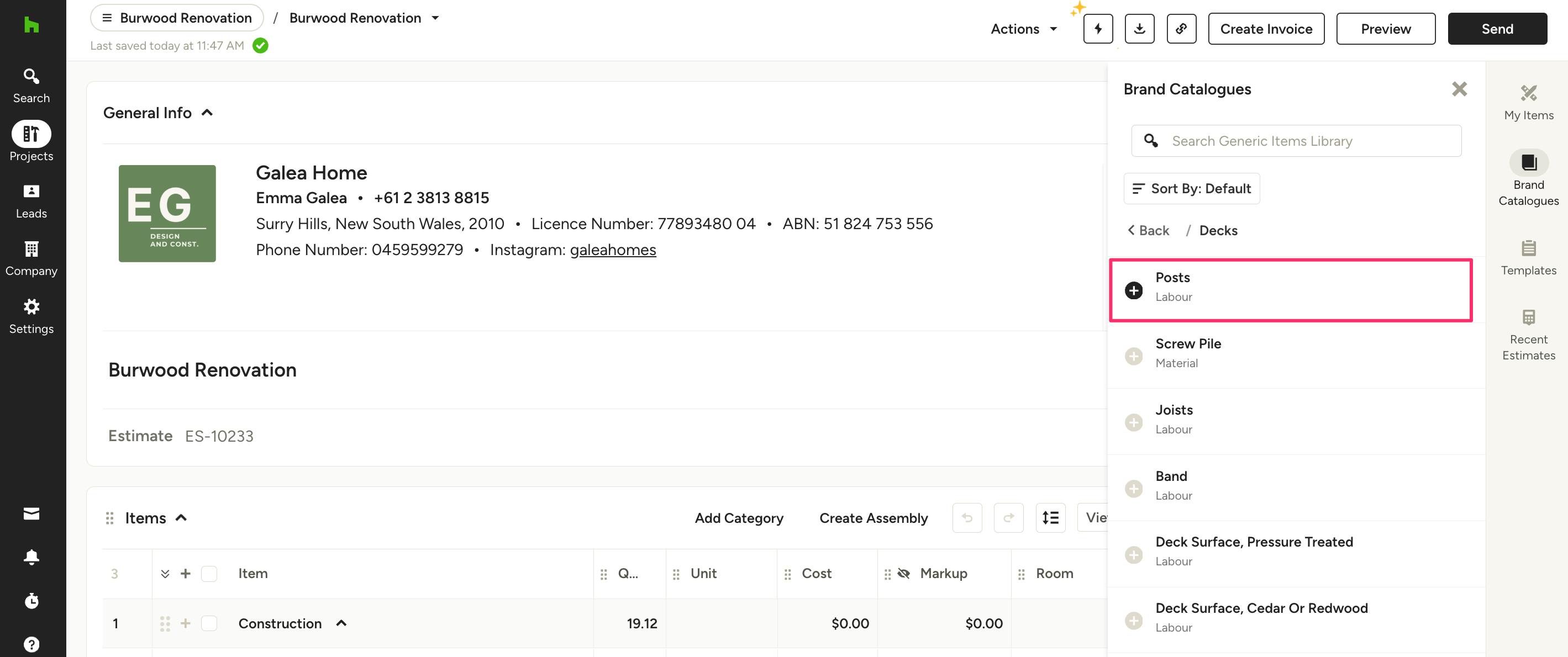
Once you have selected a specific project category, find the relevant line item and select the + button on the left to add the item to your document.
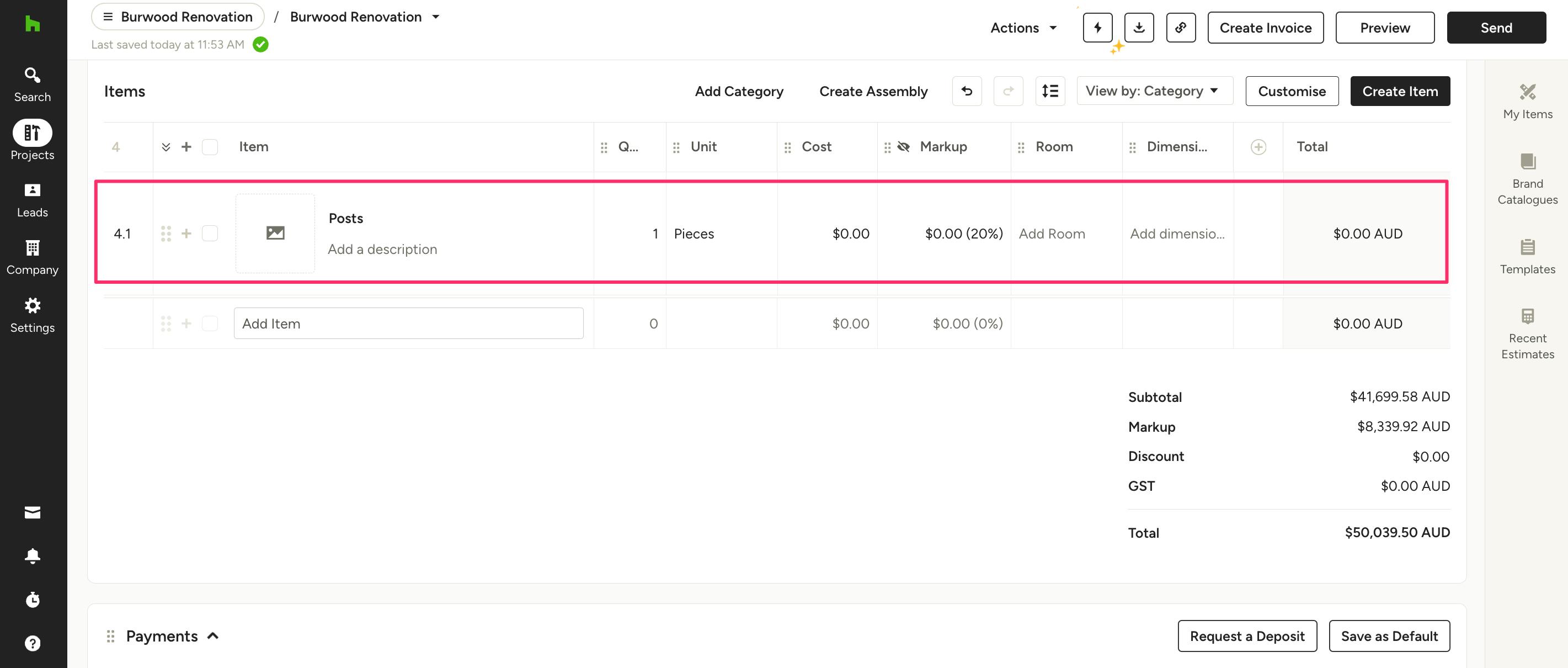
Once added to your document, that material or labour item will appear in your list of items, as shown below. You can then adjust the item details if needed, including the title, description, price and more.
Add Line Item Within Document
Another way to quickly add a new Generic Items Library item is by adding a new line item directly in the document.
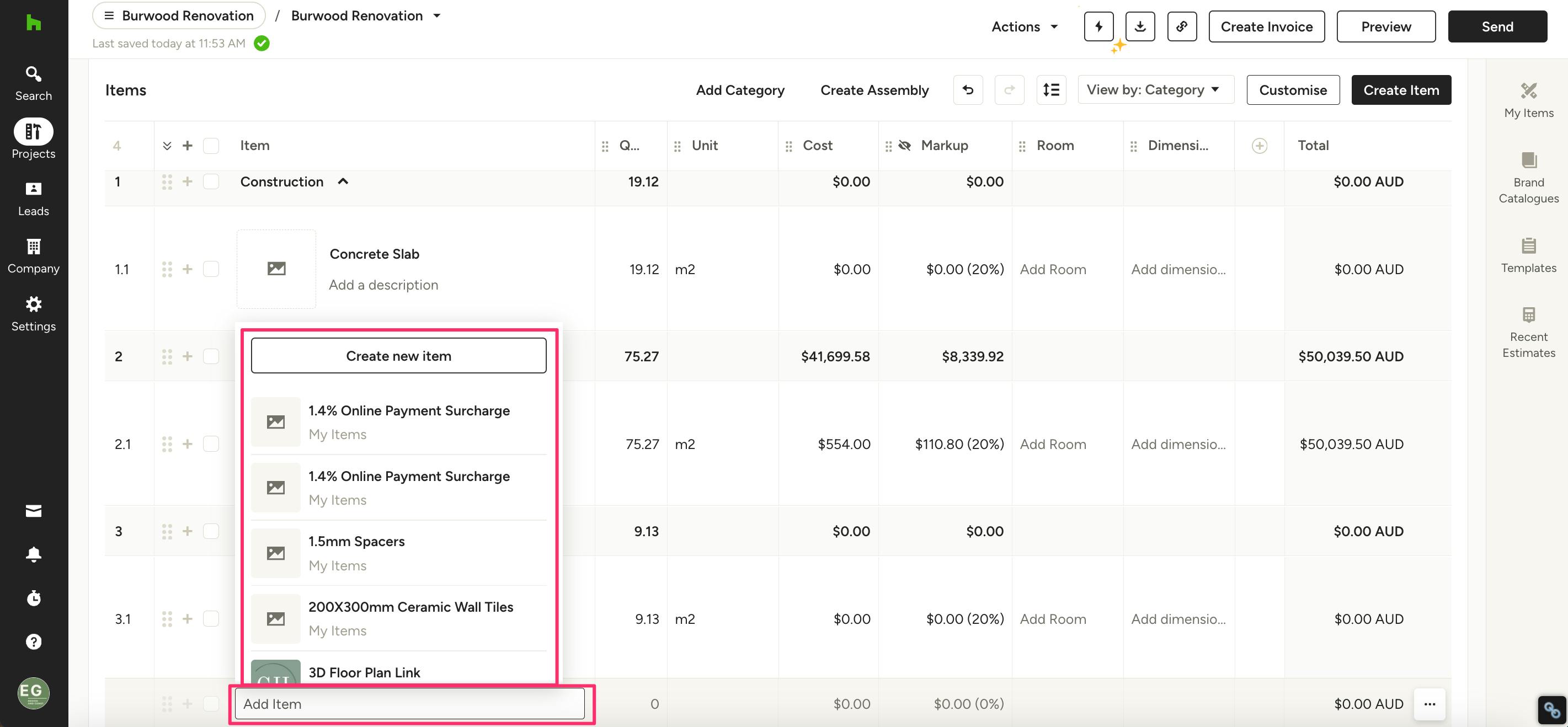
To do this, click the Add Item text box in your document, and start typing in the item you are searching for. Results will include items from the Generic Items Library and items saved under My Items. Please Note: There might be duplicates if one of your saved items originated from Generic Items Library.
Click on the item you want to add on the list to directly add to your document.