How to Troubleshoot Sync Issues with Xero
Last updated:Syncing Houzz Pro to Xero allows you to manage all your accounting needs automatically. Here’s a list of errors you might run into with your sync, and what to do about them.
——————————————————————————————————————————
Error: Payment amount exceeds the amount outstanding on this document.
Cause: This error occurs when a payment can't sync to Xero because the payment amount is greater than the open balance of the invoice in Xero. The amount of a payment must be less than or equal to the open balance on the invoice to sync successfully to Xero.
How to fix the sync error: Remove any duplicate manually applied payment from the invoice in Xero and sync again. If the error doesn't clear or the payment does not need to sync, contact Houzz Pro Support for additional assistance.
——————————————————————————————————————————
Error: Payments can only be made against Authorised documents.
Cause: In Xero, payments are only able to be applied against invoices that are in the authorised state. New payments cannot be made against Invoices in Xero that are already paid, or against draft Invoices. For example, this error will come up if an invoice is marked as 'paid' in Xero directly before syncing the payment from Houzz Pro. The error will come up when we are trying to sync the payment against a document that's already 'paid' instead of ‘awaiting payment’.
Solution: In Xero, remove the Payment from the document. In Houzz Pro, go to the Xero integration dashboard page, then click on the filter to see un-synced payments. You can then sync the payment over to Xero.
——————————————————————————————————————————
Error: Document date can’t be before the period lock date. Currently set at XXX.
Cause: This error occurs when a transaction cannot sync to Xero because it was created prior to the lock date in Xero.
How to fix the sync error: Adjust the lock date in Xero in order to sync the transactions from Houzz Pro. Please reference this article for the steps on how to do this.
——————————————————————————————————————————
Error: Purchase order sync failure.
Cause: The wrong tax type that was used in the PO.
How to fix the sync error: There are two possible solutions for this issue.
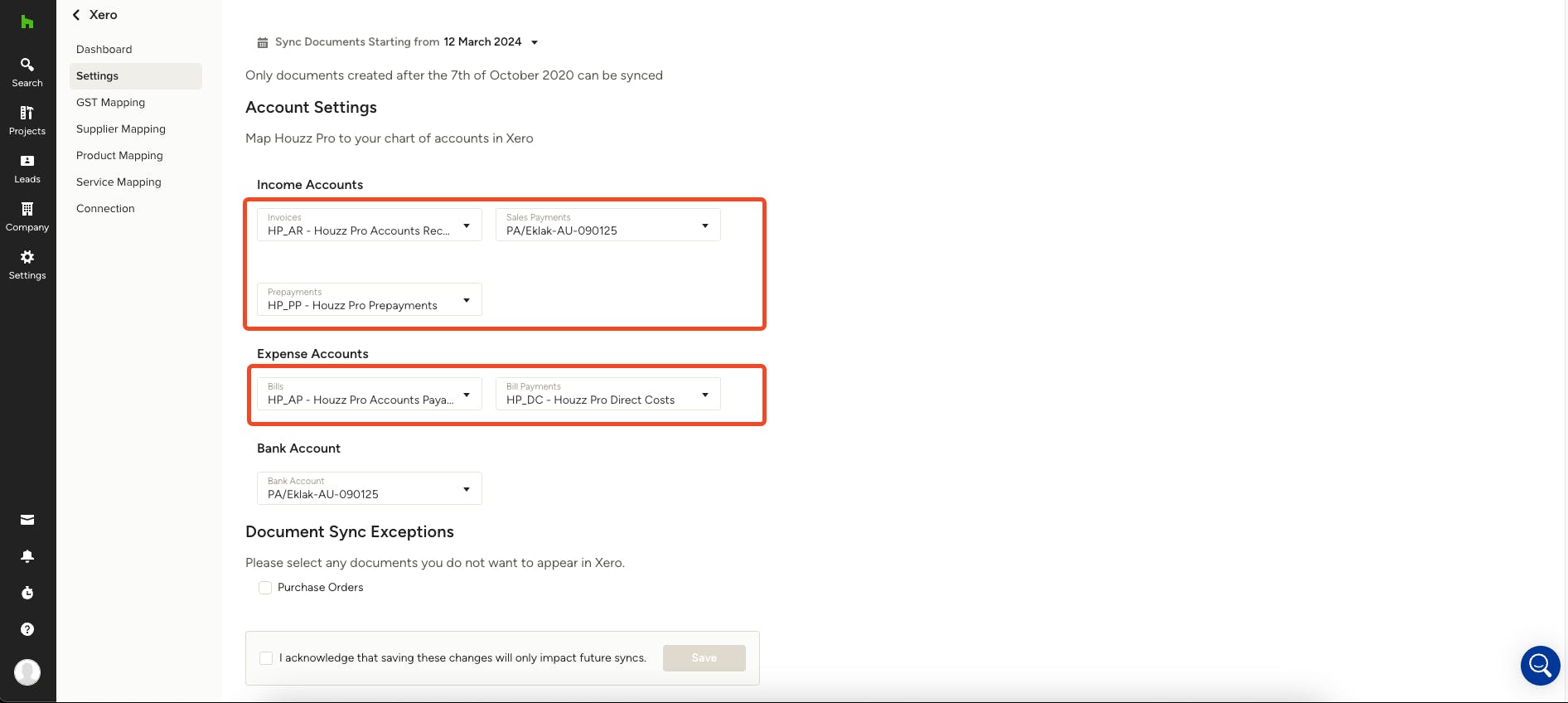
1: You may need to change the Bills and Bill Payment Account mapping under the settings tab of the integration to the default ones. Follow these steps:
- Go to Xero > Settings page.
- Update the Bills and Bills Payment account to the default one.
- Bills -> HP_AP - Houzz Pro Accounts Payable
- Bills Payment -> HP DC - Houzz Pro Direct Costs
2: You may need to update the GST Mapping and Change in Expense Documents (POs). Follow these steps:
- Create new GST from Settings > Business Documents > Accounting > Create new GST rate.
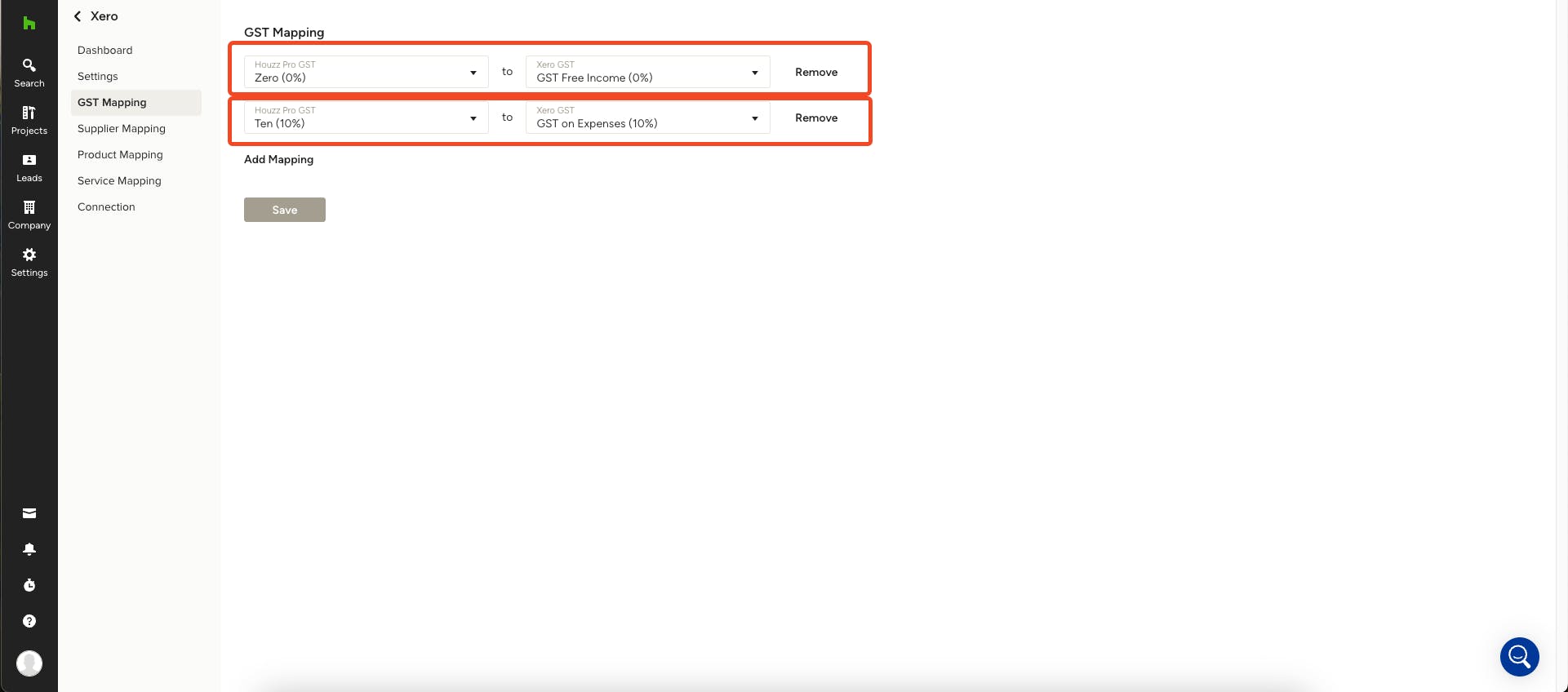
- Go to GST Mapping Page from Settings> Xero > GST Mapping and update the newly created GST to the Xero GST (GST on Expenses)
- Go to the failed documents, and update the GST for the line items to the one which is newly created and mapped to the GST on Expense in GST Mapping Page.
- Resync the document.