How to Create a Proposal
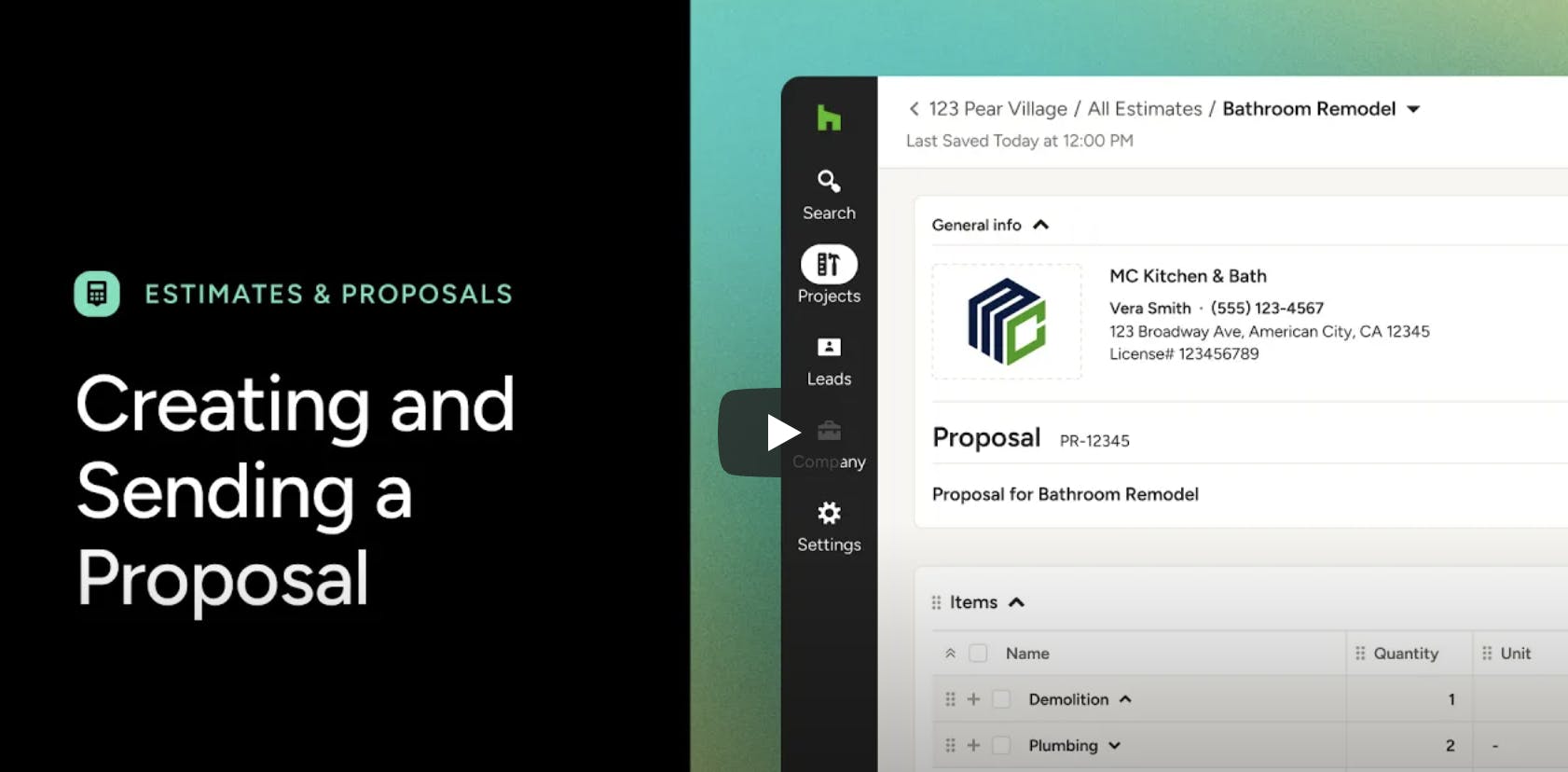
There are several options to choose from when creating a new proposal for your project. You can:
- Create a proposal from scratch
- Create a proposal using AI
- Create your own proposal template
- Create from an existing template
- Upload an existing proposal
- Duplicate an existing proposal
- Convert selections to a proposal
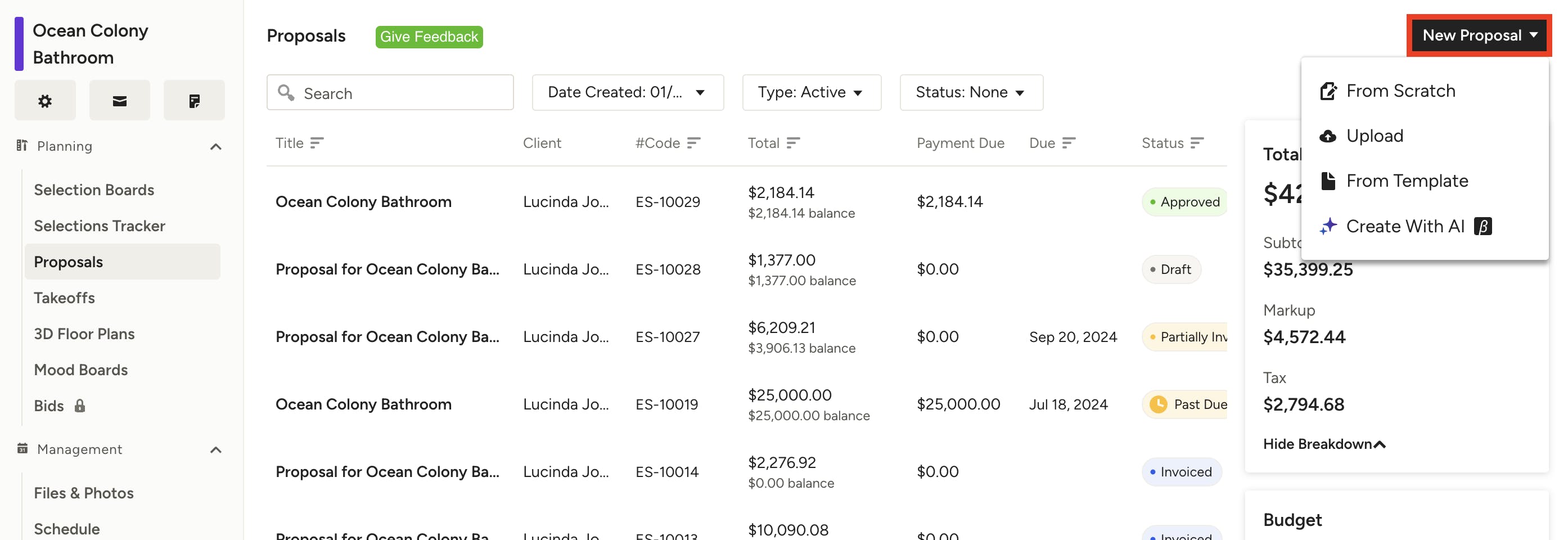
To start:
1. Go to the project where you would like to create a proposal. From within the Proposal section of that project, click on the New Proposal button.
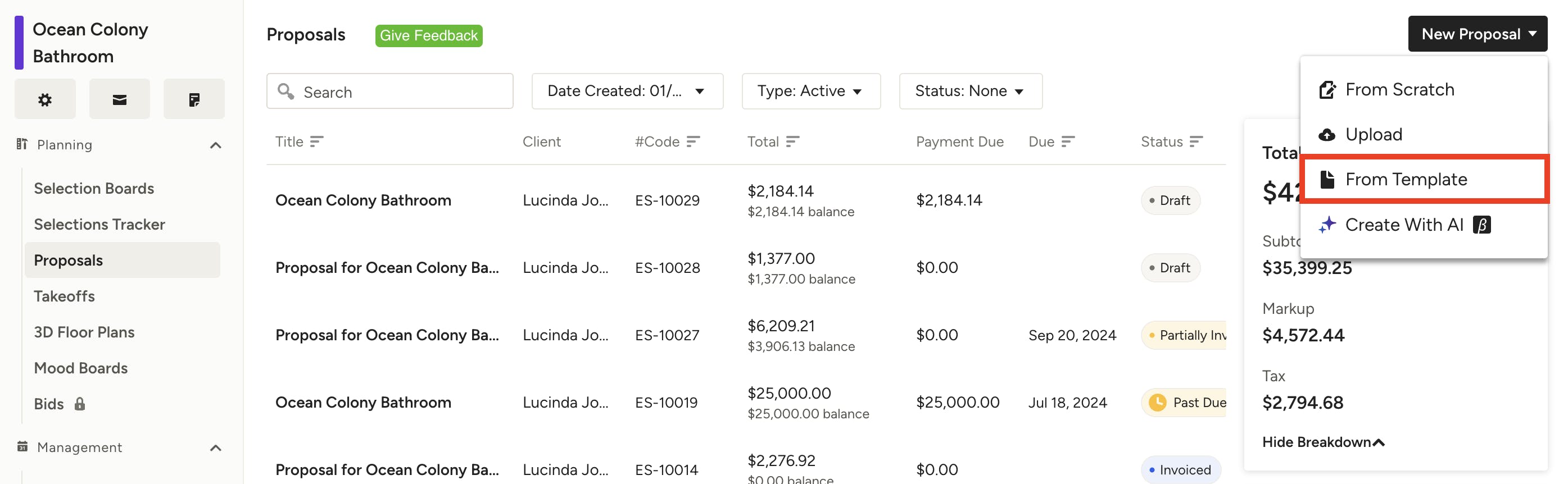
2. From the dropdown menu, select From Scratch, Upload, or From Template.

Create Proposal from Scratch
If you would prefer to start from the beginning with your proposal, there are two ways to do this:
- On your Houzz Pro homepage, click the Proposal icon in the Create New section, select From Scratch, then assign it to a project.
- From the Proposals section within a project, click on the New Proposal button, then select From Scratch.
Adding Items
Once your new proposal is created, you're ready to add items. You can click into the Add Item field in the document to manually add information. Here, you can either create a new item, or search for and select an existing item. You'll see items sourced from My Items and project items.
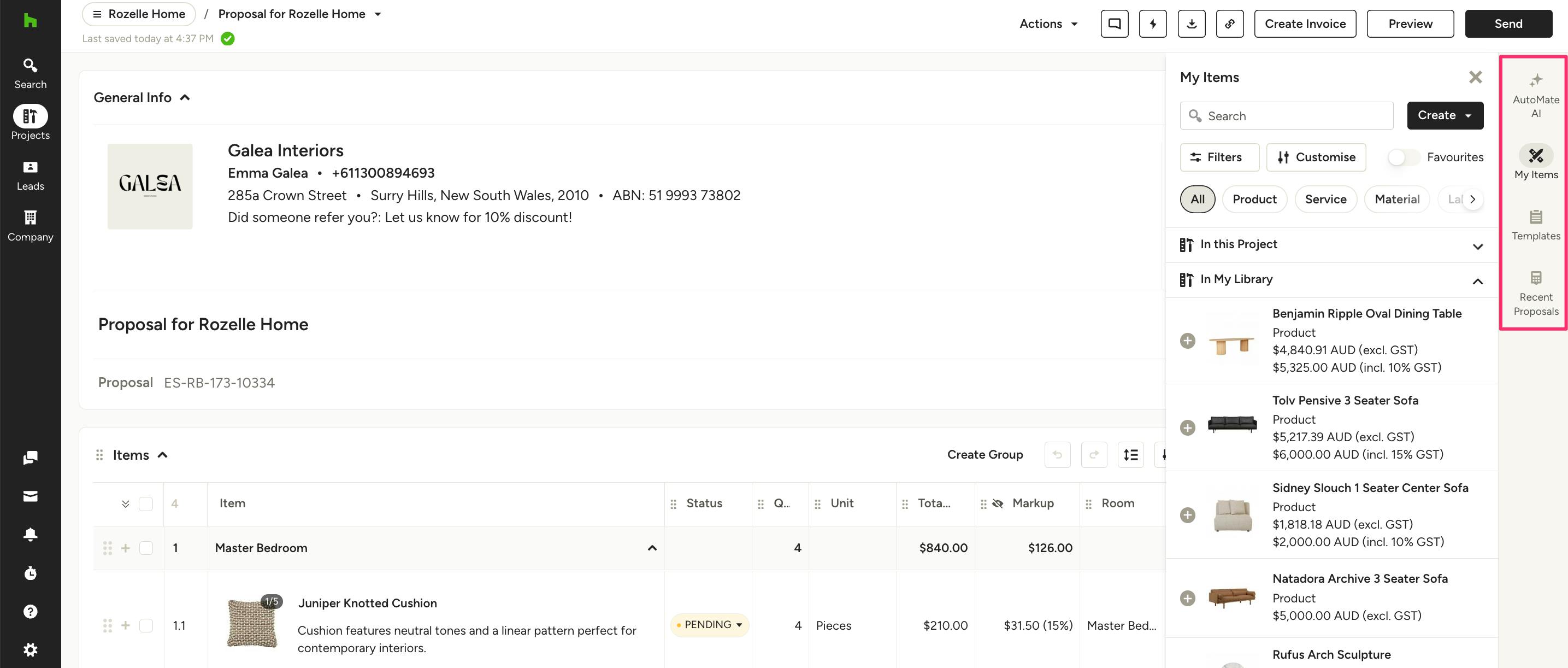
The menu on the right side of your document also gives you access to items from various sources:
- AutoMate AI: Add detailed project description to add line items (more below)
- My Items: Items from your product and item library — this includes items added manually or added through the Clipper
- Templates: Items from your existing custom document templates
- Recent Proposals: Items from other proposals across projects
Use the filters and the search bar to quickly find the items you want, then click the + icon next to the item(s) to add to the proposal. Once added, you can manually update the details, like descriptions, quantity or marking an item GST applicable.
Creating Groups from Line Items
Line items on your proposal can be grouped together to create one parent item. This is particularly helpful when creating custom pieces or billing for items composed of multiple components where you may not want to show your client every little detail. Check out How to Group Lines Items on Proposals and Invoices to learn more.
Organising Items
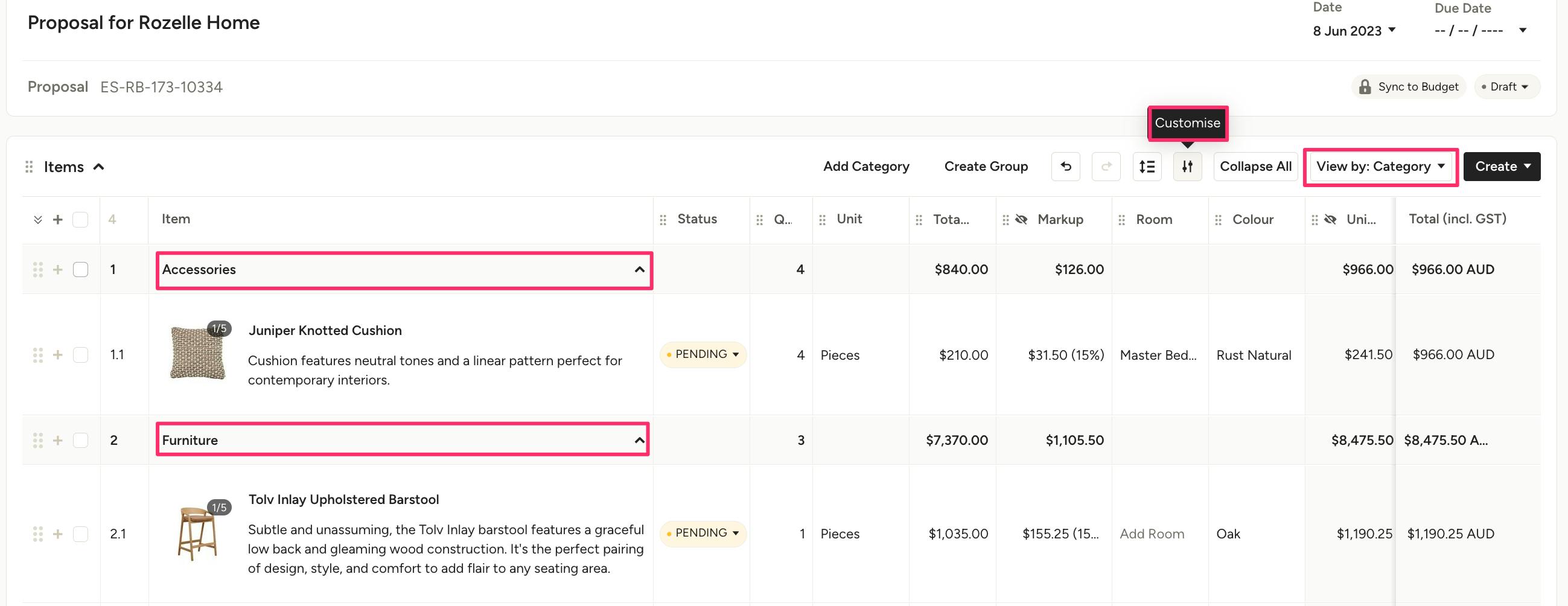
Arrange your proposal how you want it by using the View By dropdown to organise your line items by category, room, section, any single-select custom column you added, or no grouping at all. The View By option you set will also be applied to the downloaded PDF and client view of the proposal.
Note: If you don't see a View By option in the dropdown you may need to enable the specific column under the Customise settings.

Customising Columns
To add or remove columns, click on Customise at the top of the Items section and turn on/off the columns you wish to show or hide; this view is for you and your team, not the client. To edit what the client sees, check out the next section about previewing and sharing.
Learn more about customising your proposal in How to Add Custom Columns, Line Item Descriptions, and Images.
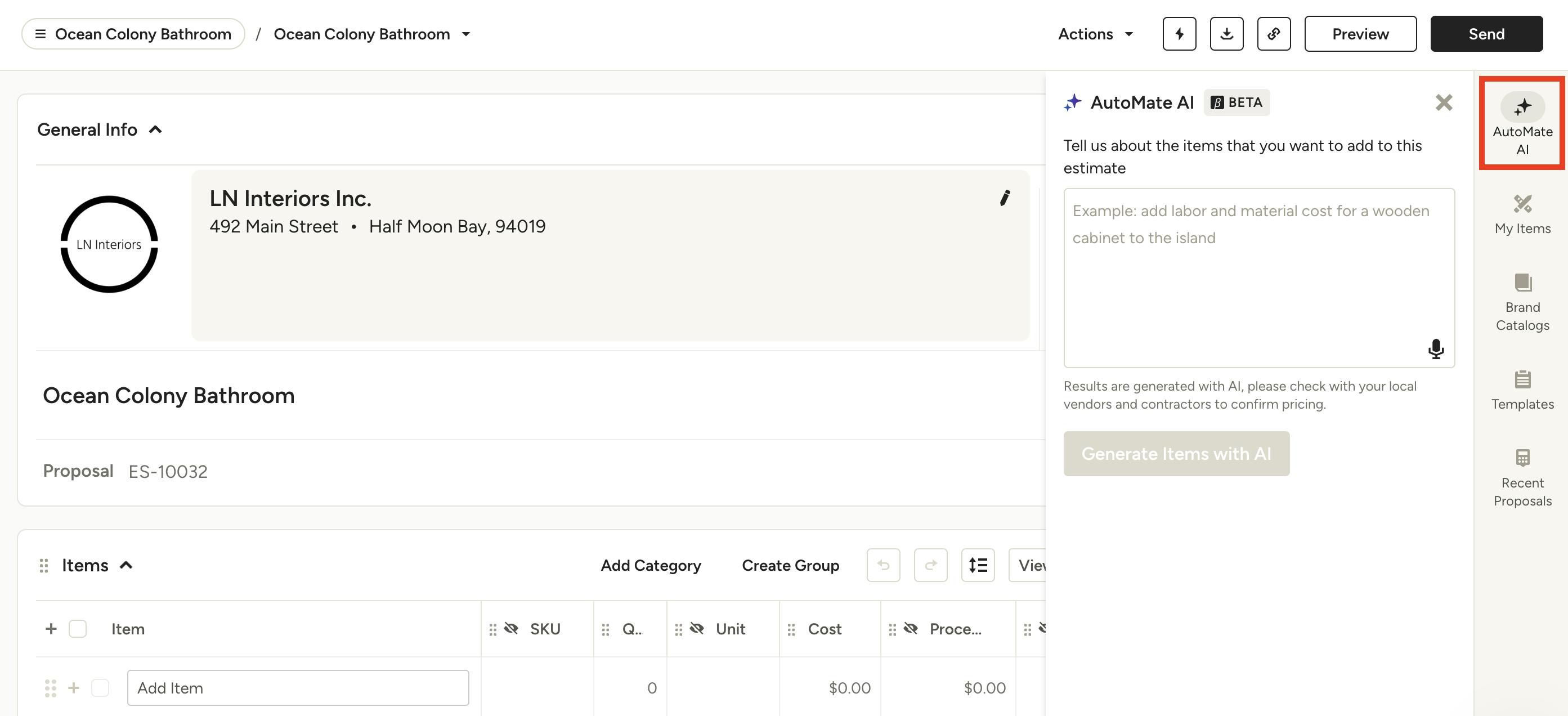
Create Proposal Using AI
For a quick and easy document creation process, you can use AI to help populate proposal line items and categories. Just provide an in-depth project description, and our AI, AutoMate, will take care of it from there. To learn more about AI-generated proposals, read How to Use AI to Create a Proposal.
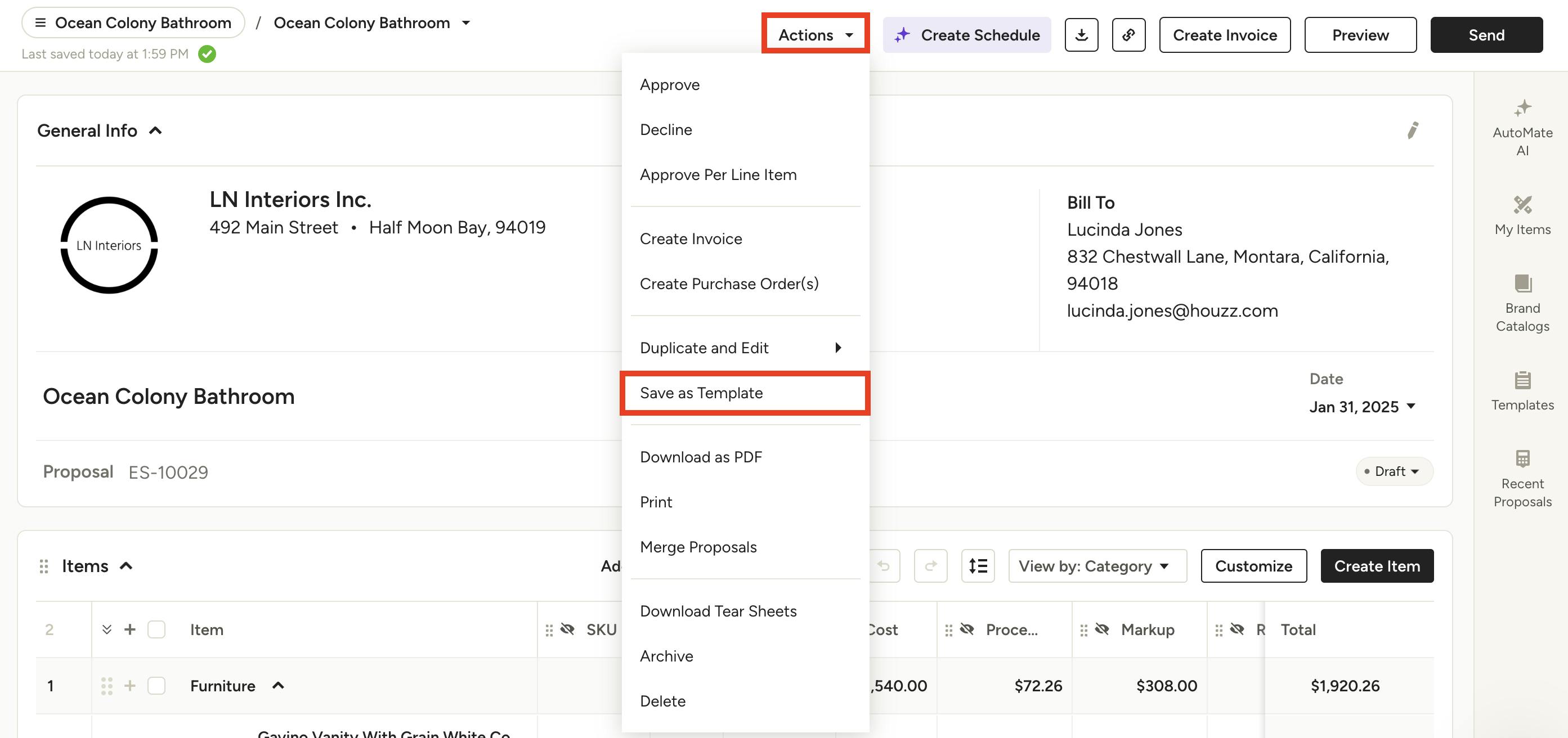
Create Your Own Proposal Template
If you have a standard template for your business that you would like to use time and time again, you can create your own custom template.
Once you create your proposal with your preferred format, select the Actions dropdown, and find Save as Template.
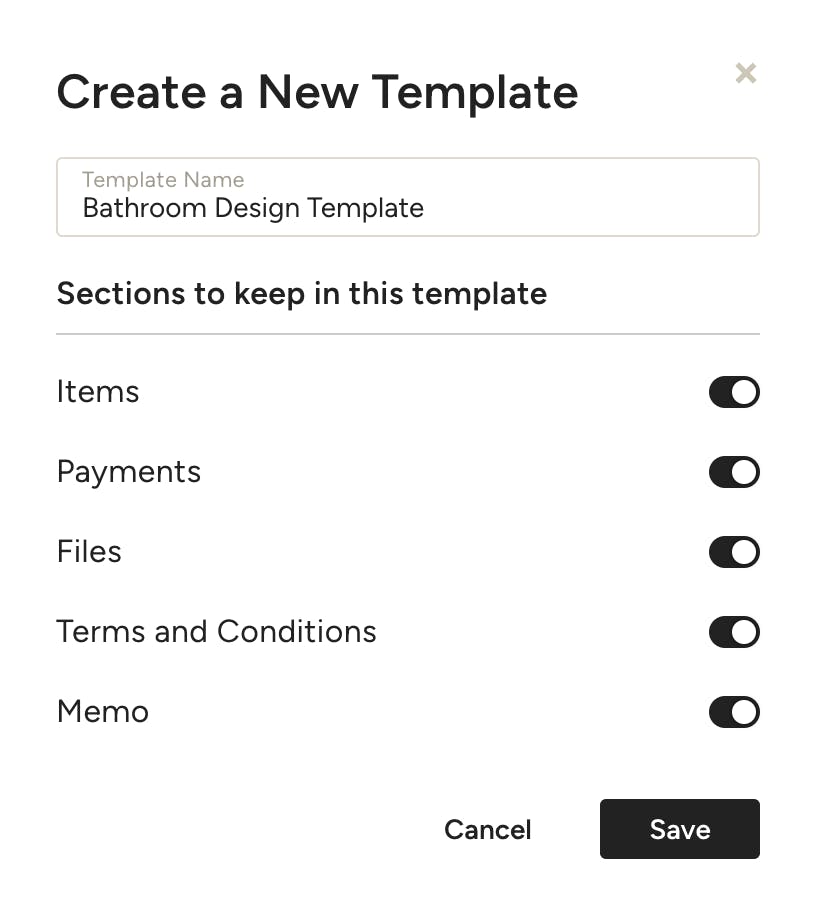
From there, you can name your template and select all the sections you would like to keep for your proposal template. Click Save.
Once you create your template, you will be able to access it in the Template Centre whenever you need it or want to make edits. To find templates from the navigation, select the Company icon from your left navigation, then Templates.
Create Proposal from Template
If you have previously saved a past proposal as a template, you can use it to create a new proposal that's already formatted to your desired layout and/or prefilled with any relevant products or services.
To create a proposal from a saved template, find the Proposal section in your project, click on the New Proposal button and select "From template". Choose the template you want to use and click Create. You can then edit and add any necessary details to your new proposal.
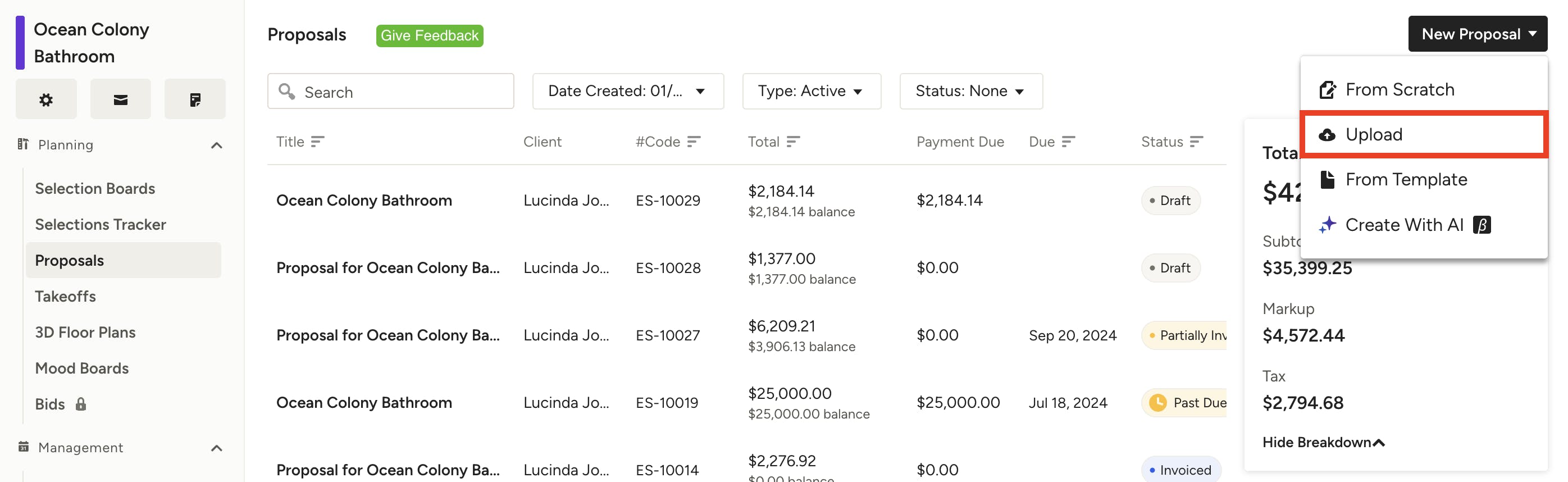
Upload Proposal File
If you already have a proposal that you would like to upload into Houzz Pro, you can do this as well. Here's how:
1. Select the Upload option in the New Proposal dropdown.
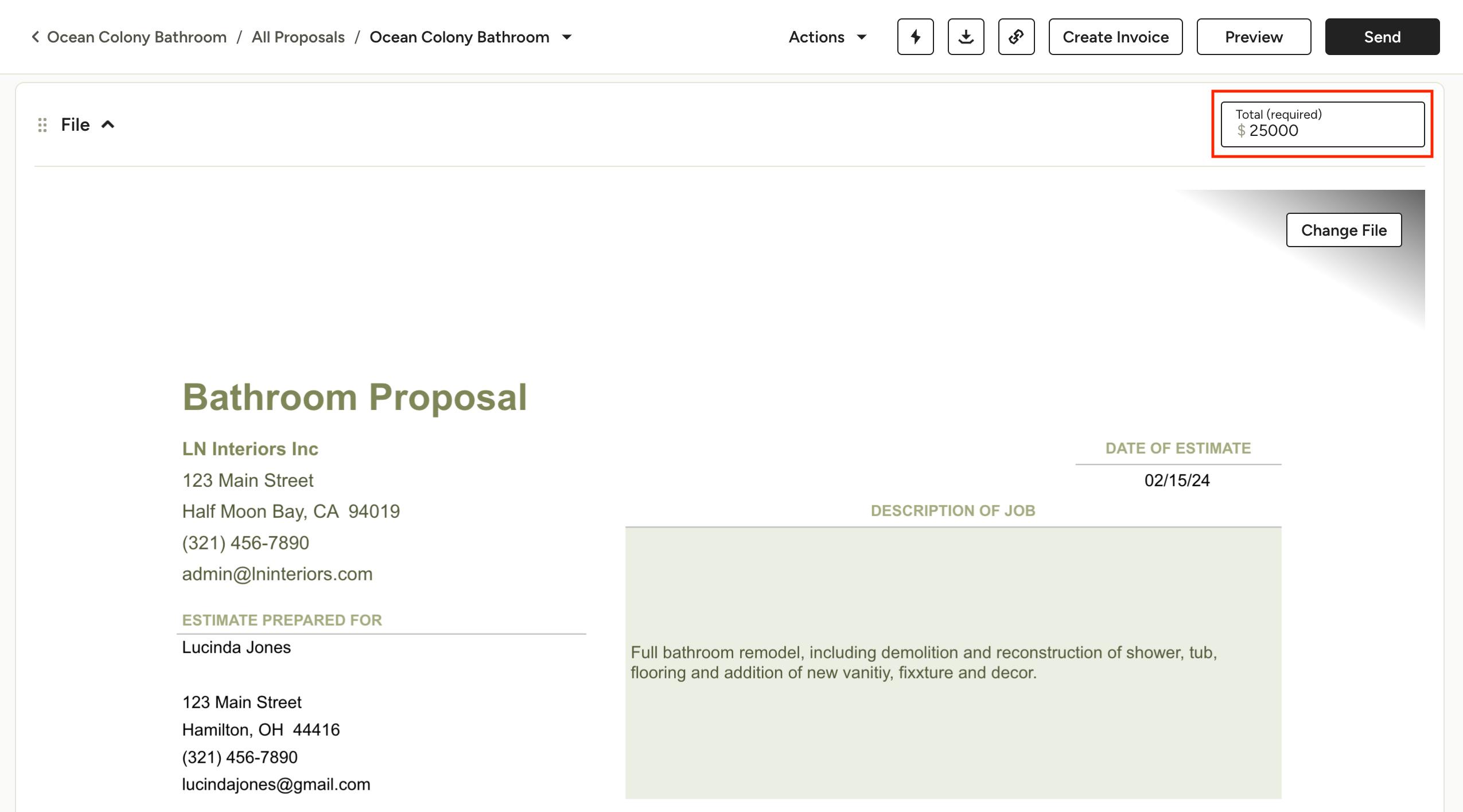
2. Choose the file from your computer you want to upload as a proposal.
3. Once your proposal loads into Houzz Pro, you will need to add in the proposal total in the text box at the top right of your screen. This ensures that there is a total amount due for the proposal, which you can use to create a payment schedule, an invoice, and/or receive online payments.
You can also adjust other details, such as title, due date, scheduled payments, terms and conditions, memos, and more.
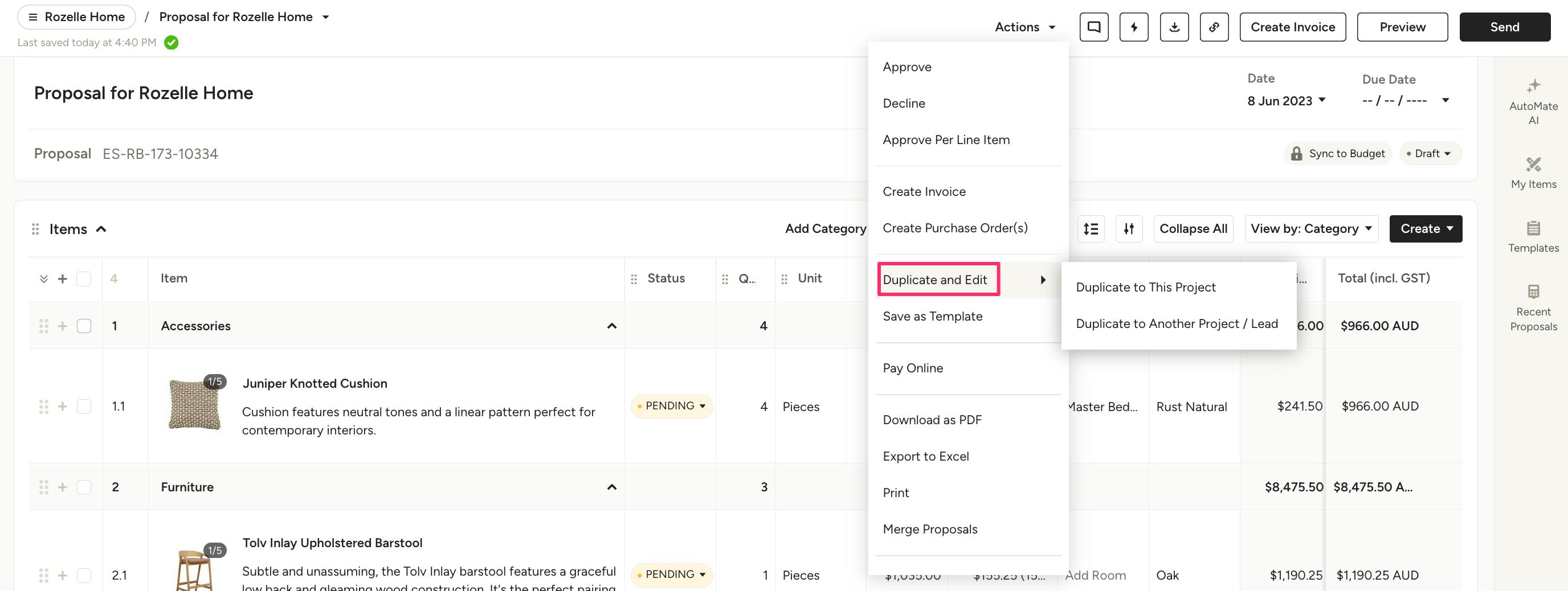
Duplicate Existing Proposal
If you have a proposal that you used in a previous project and would like to use again, you also have the ability to duplicate that proposal and move it to another project.
To start:
1. Open up the proposal you would like to duplicate. Select the Actions dropdown, and find Duplicate and Edit.
2. From there, you can choose to either duplicate the proposal to the existing project, or you can duplicate the proposal and move to another project.
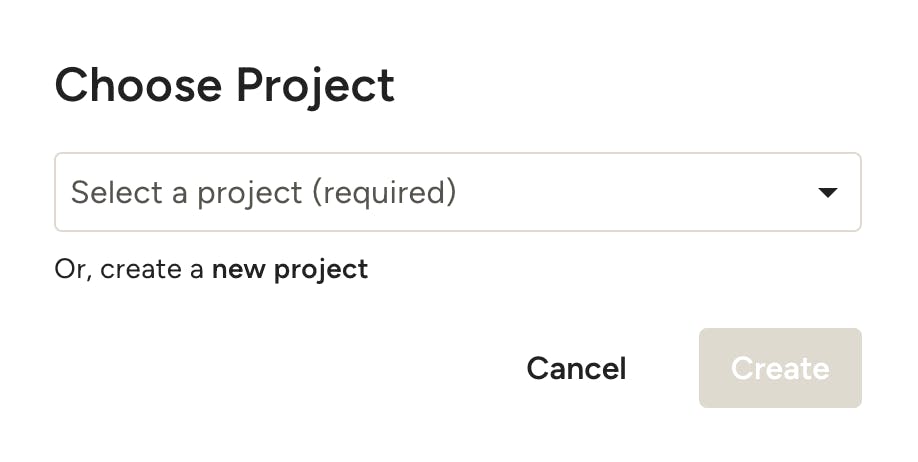
3. If you decide to use in another project, just select that Project from the dropdown menu that pops up, or you can choose to create a new project for this proposal.
4. The duplicate proposal will now be in the selected project so you can make changes as needed.

Convert Selections to Proposal
If you've already had your client approve their choices on a selections board, you can quickly create a proposal for those items by clicking the Convert button on the top right of the selections board, then choosing To New Document. Set the document type to Proposal, then you'll be able to select exactly which items to include, as well as see the total for the items selected.
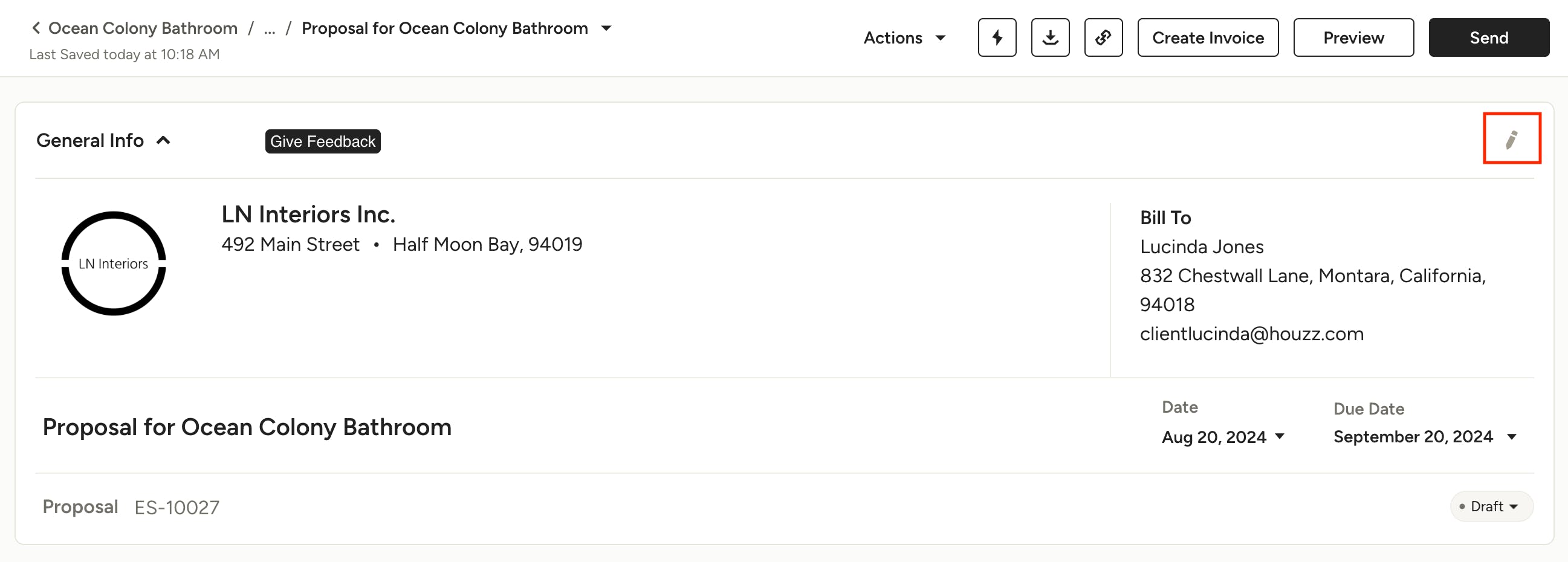
Edit Document Settings
The settings on your proposal are fully customisable to fit the need of each project and client. You can edit the general document details (title, document code, client and company info, creation date etc.) as well as payment schedule, terms & conditions and memos, signatures and automated tasks and reminders.
To learn more about your document settings, check out How to Edit Your Document Settings.
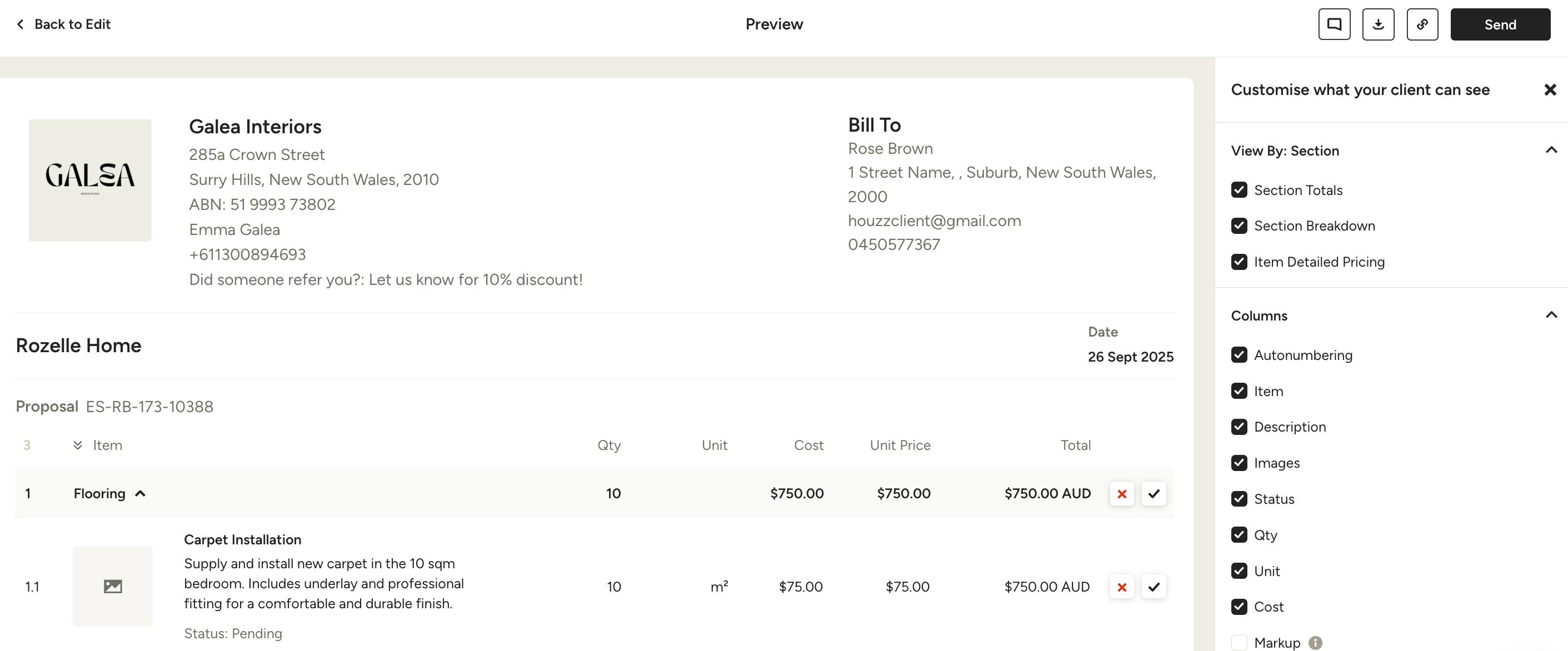
Preview and Share Proposal
Before sending your proposal, you can preview it and choose exactly how it will look to your clients. First, select the Preview button in the top right of your screen.
Next, review the settings under "Customise what your client can see" in the right panel.
You can read more about preview options for proposals in this article: How to Customise What Your Client Sees on Financial Documents.
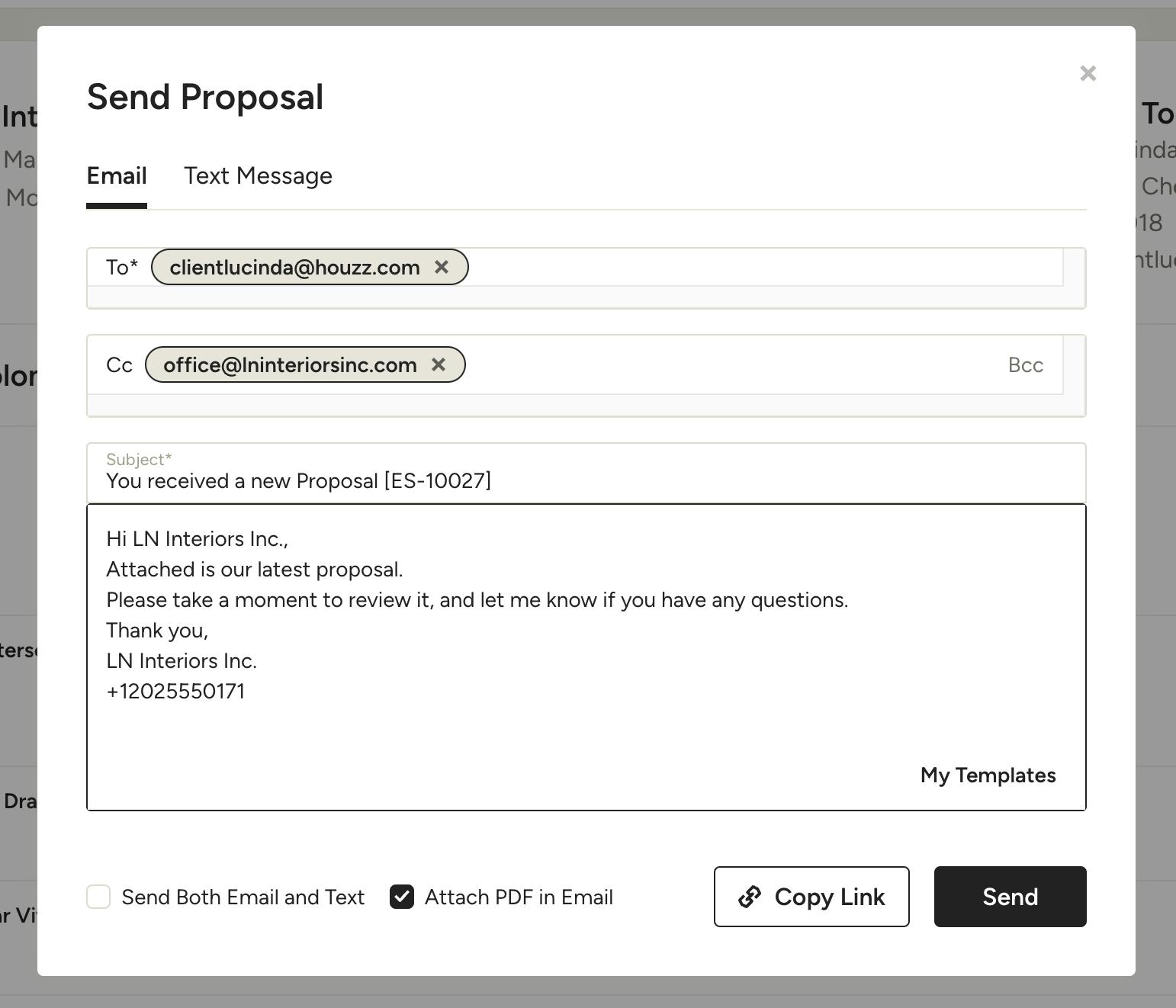
When your proposal is ready to go, click Send (from either edit or preview modes). You can either write a personalised email message or use your saved message templates. Once your client receives the email, they can view the proposal and approve or decline it directly from their computer, phone, or tablet device.
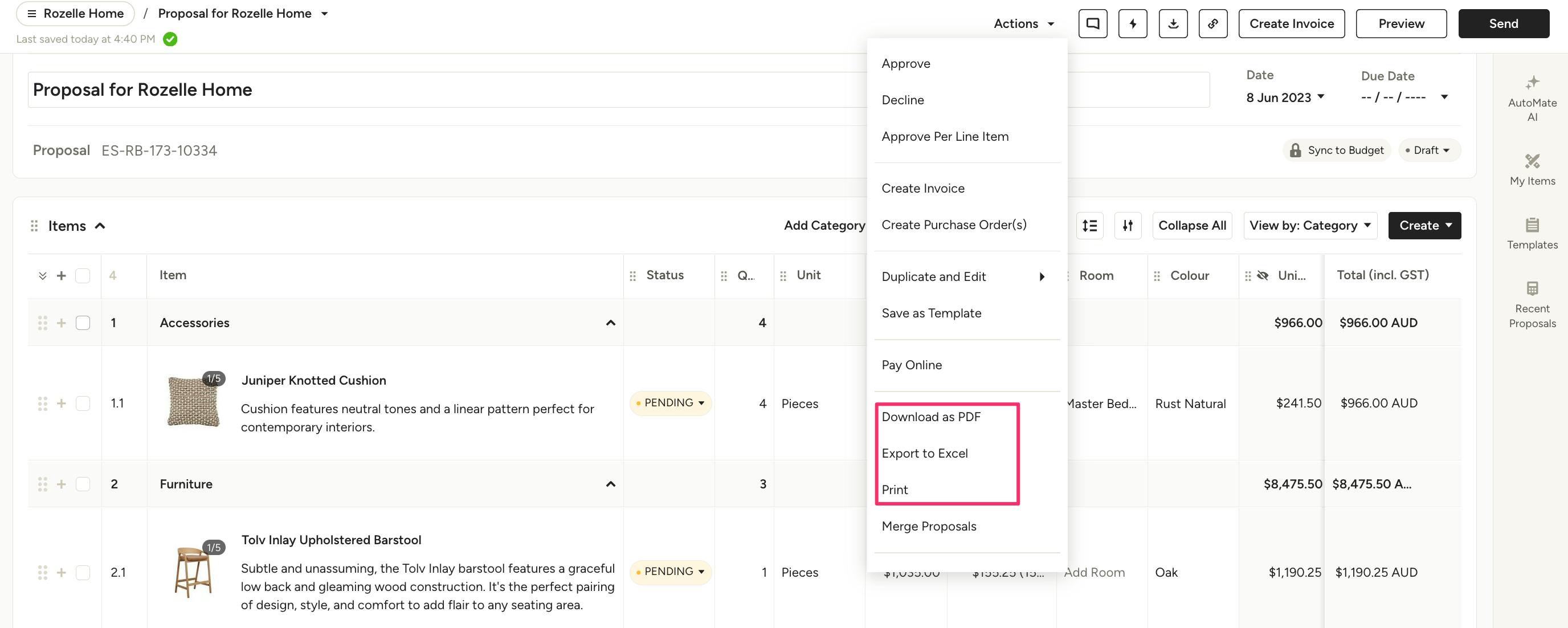
Print, Download and Export
Alternatively, you can opt to print your proposal to share a physical copy, download and attach it to an email, or export to Excel. To do so, open the Actions menu at the top of the page and select Download as PDF, Export to Excel, or Print, depending on your desired action. You can also download a PDF using the download icon at the top of the page.
Comment on Proposals
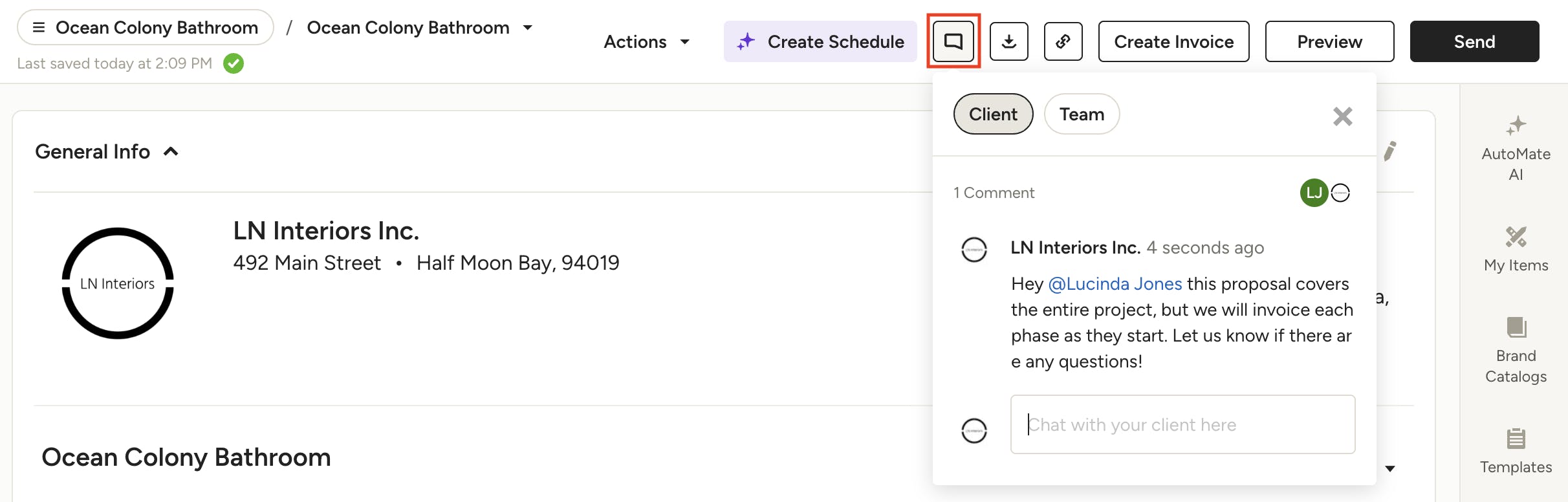
Once you share your proposal with the client, you can communicate with them (and team members) directly on the document by using the comment feature at the top. This allows you to easily reference document details you might be discussing, and keeps conversations organised. To learn more, read How to Comment on Documents in Houzz Pro.
Edit Approved Proposal
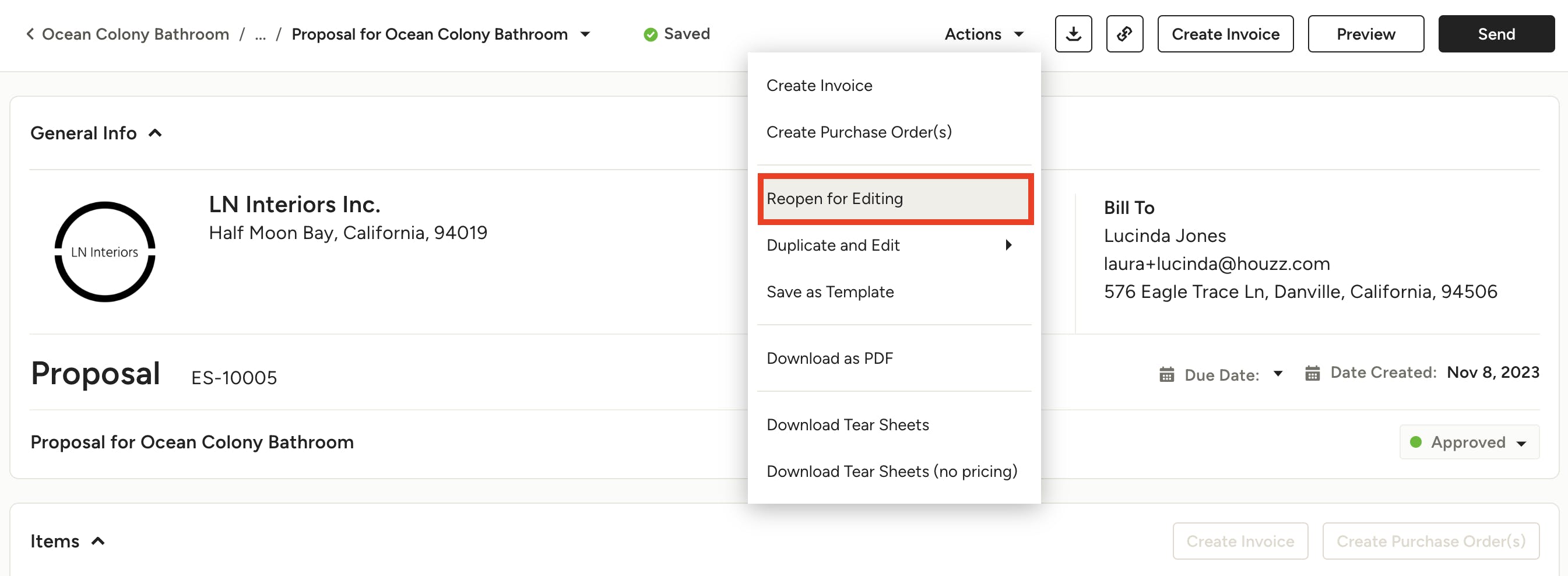
Once a proposal is approved, you will need to reopen the proposal if changes are needed. Your client won’t be notified that you’ve reopened the proposal for editing until you reshare it with them.
To start:
1. Open up the proposal you would like to edit. Select the Actions dropdown, and find Reopen for Editing.
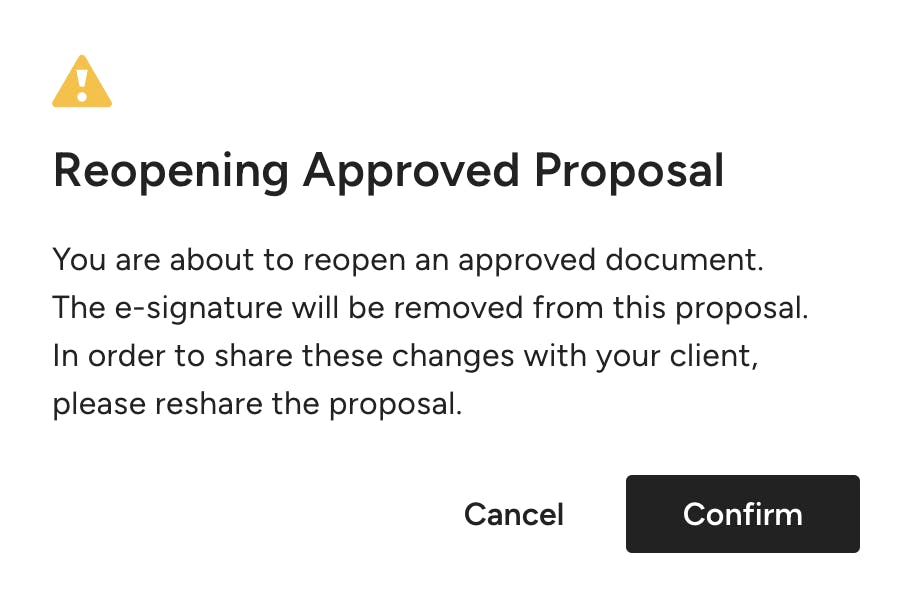
2. A popup will ask you to confirm you would like to reopen the proposal.
Please note: When you do this, e-signatures will be removed and any line item status (Approved and/or Declined) will be reset to Pending — you will need to reshare with your client for signature and line item approval after you make edits.