How to Group Lines Items on Proposals and Invoices
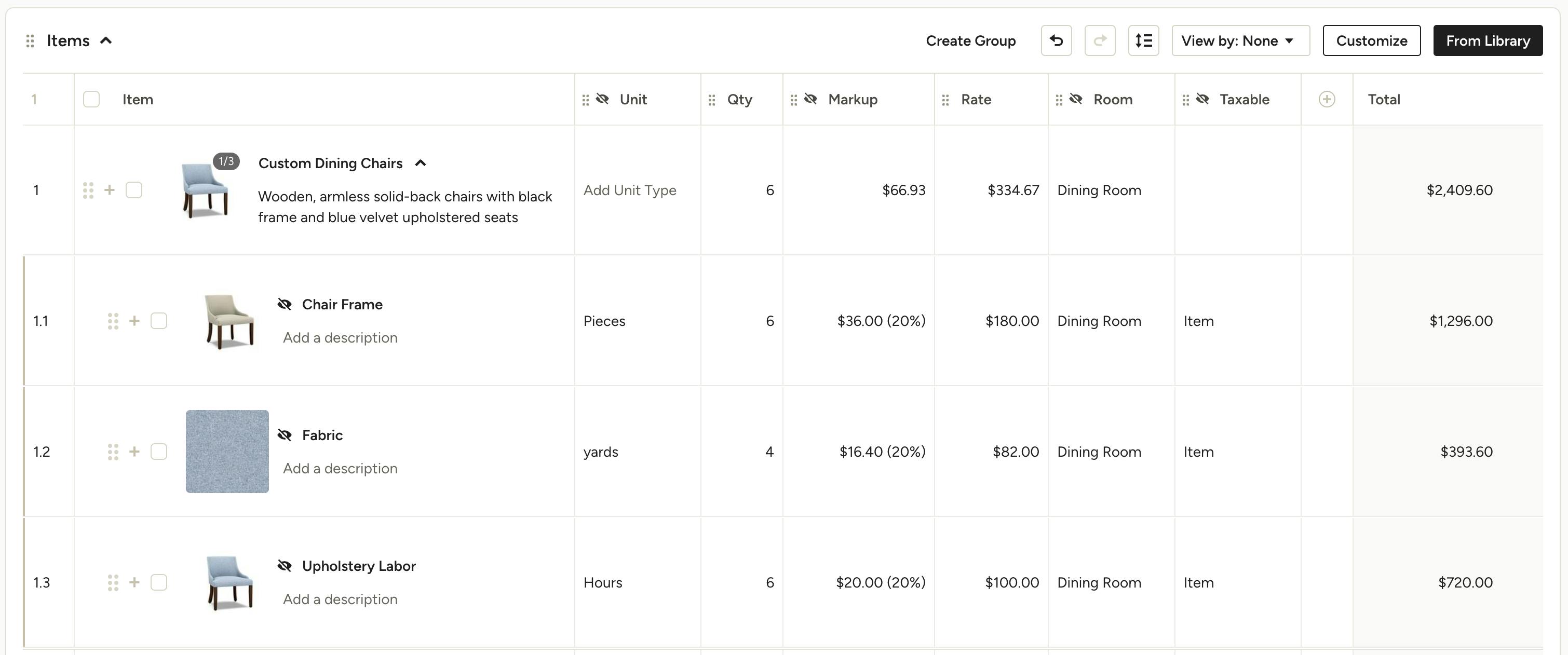
Grouping line items is the perfect way to add a custom piece to your proposal or invoice without showing your client all of the individual components. A custom chair, for example, can include fabric, labour and other materials that may come from multiple suppliers/vendors and require separate purchase orders. With line item grouping, by default all your client sees is the main line item, while the full list of components remains visible only to your firm on the internal version of your document(s).
You and your team will see this:

While your client will only see this:
To display the group breakdown to the client, see the Show Grouped Items to Client section below.
Create a Group From Scratch
You can create groups from scratch either within a document or directly in your My Items library. Let's take a look at both options:
From My Items Library
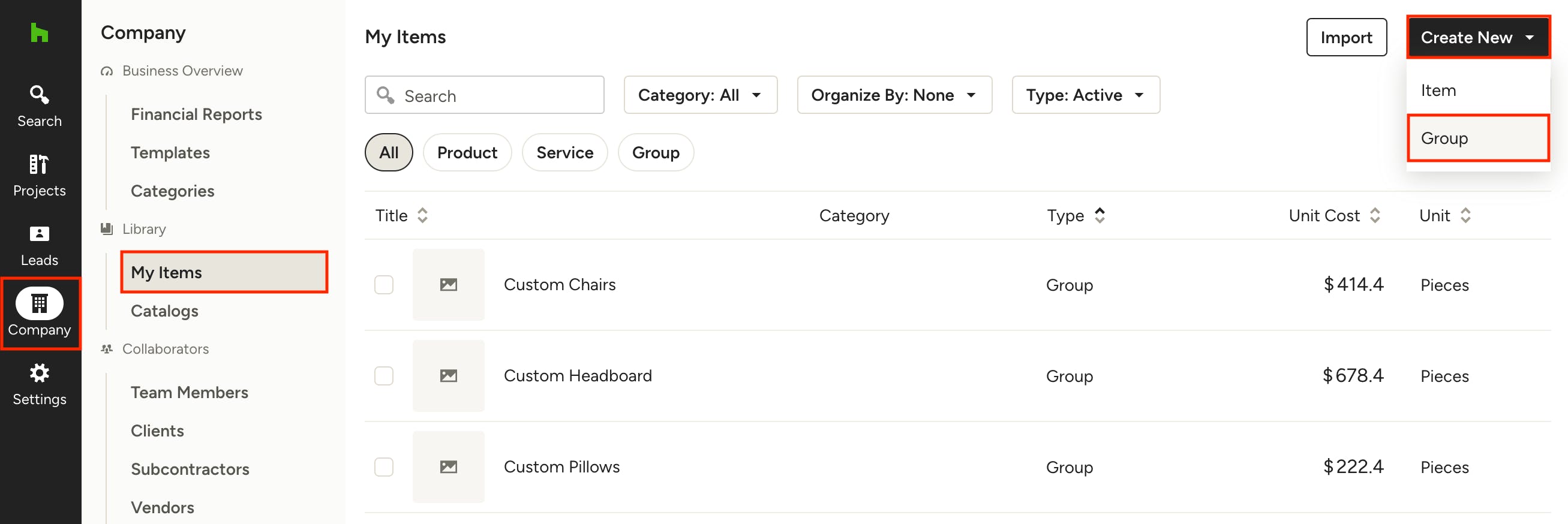
Your My Items library can be found in the Library section under the Company icon in the left navigation. From here you can click Create New in the top right, then select Group to build one from scratch.
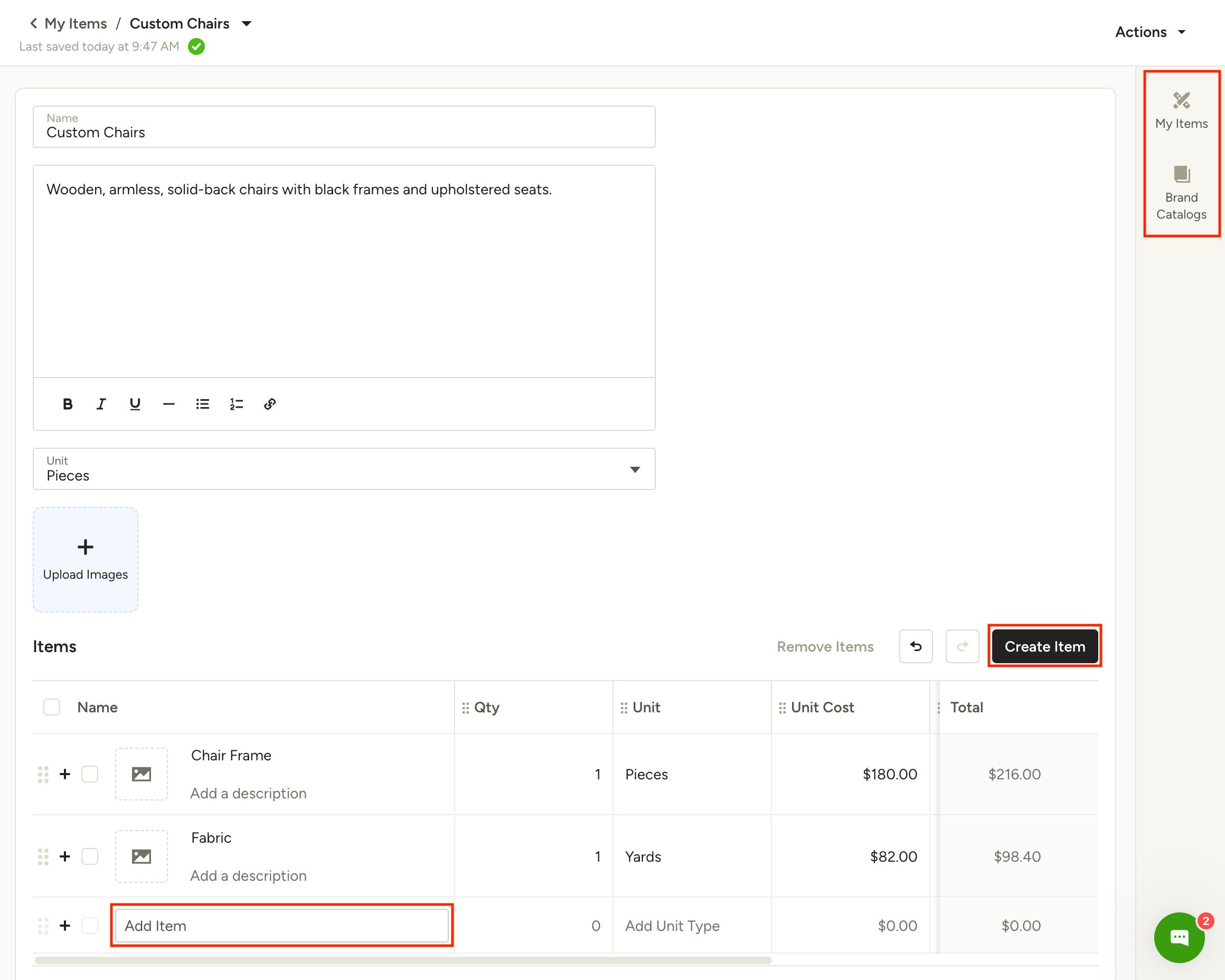
Fill in the relevant information for your new group, including Name, Description and Unit. You can upload any images to represent the group here as well.
Start adding items to the group by using the My Items icon in the right panel to select existing library items, or add items from Brand Catalogues. You can also click into an empty line item to search and select from existing items, or create a new item.
It's important to fill out the correct quantity, unit, cost etc for your group items, as this will be the basis for automating calculations when you use groups in your documents. Your changes will automatically save.
From a Proposal or Invoice
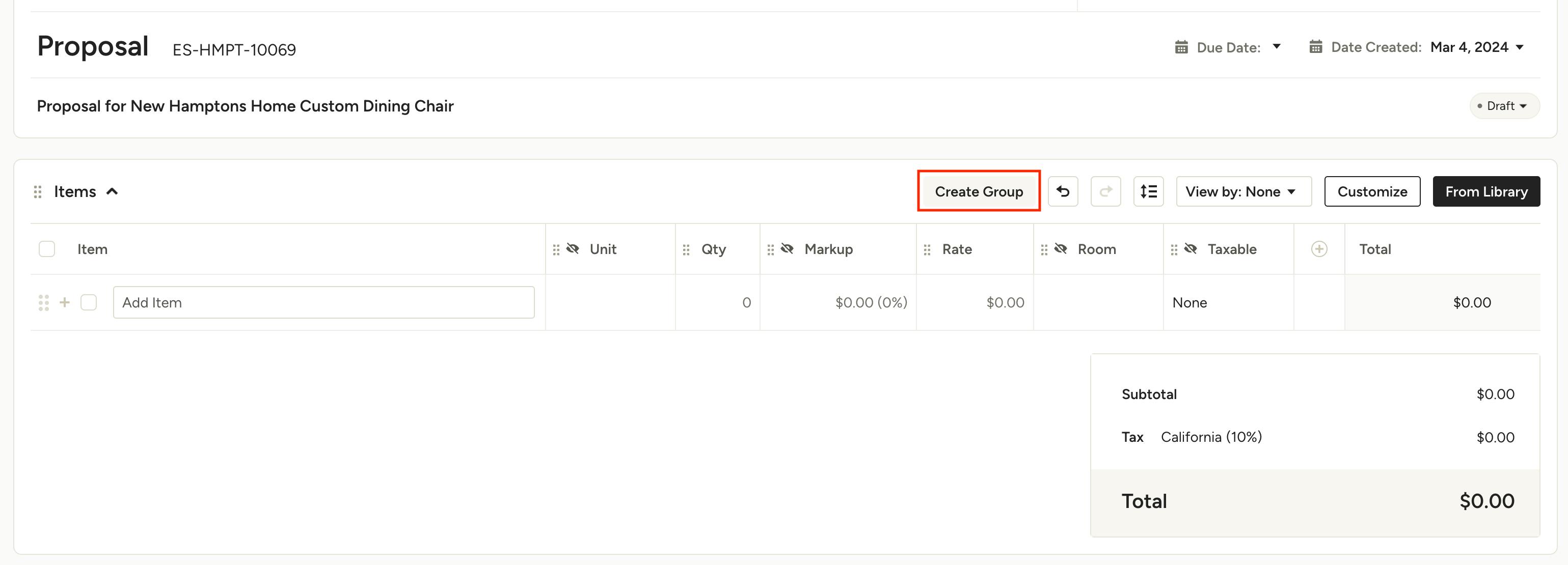
If you're working on a proposal or invoice that doesn't currently have the items you want to group, simply click Create Group in the Items toolbar.
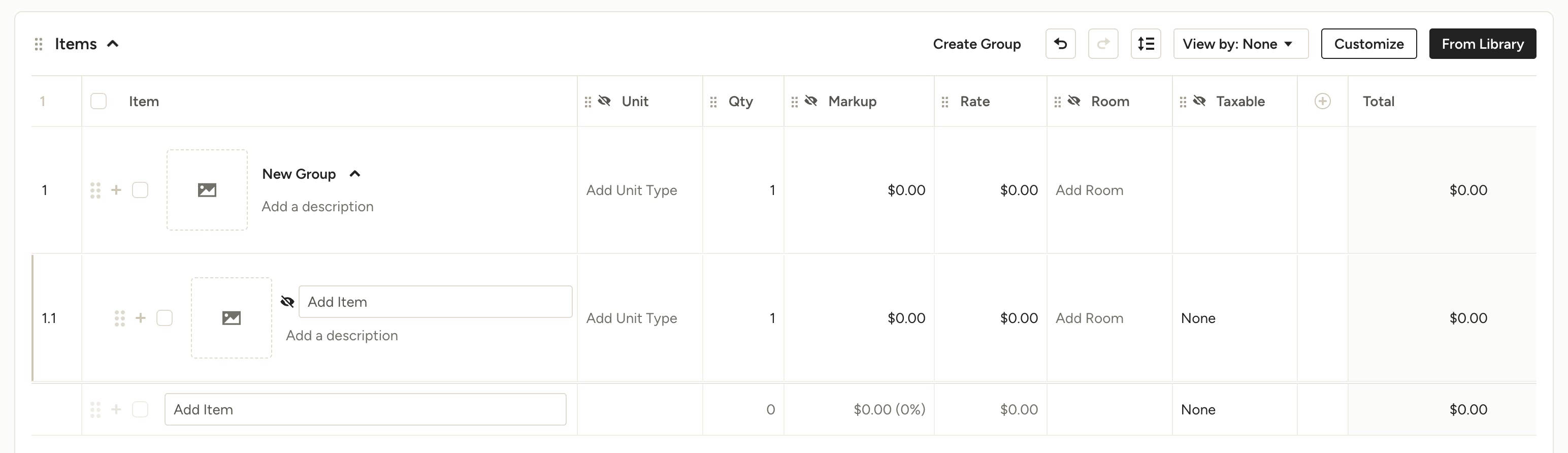
This will create the grouping structure so you can easily fill in the group title and description (what the client will see) then add the line items below (what you and your team will see).
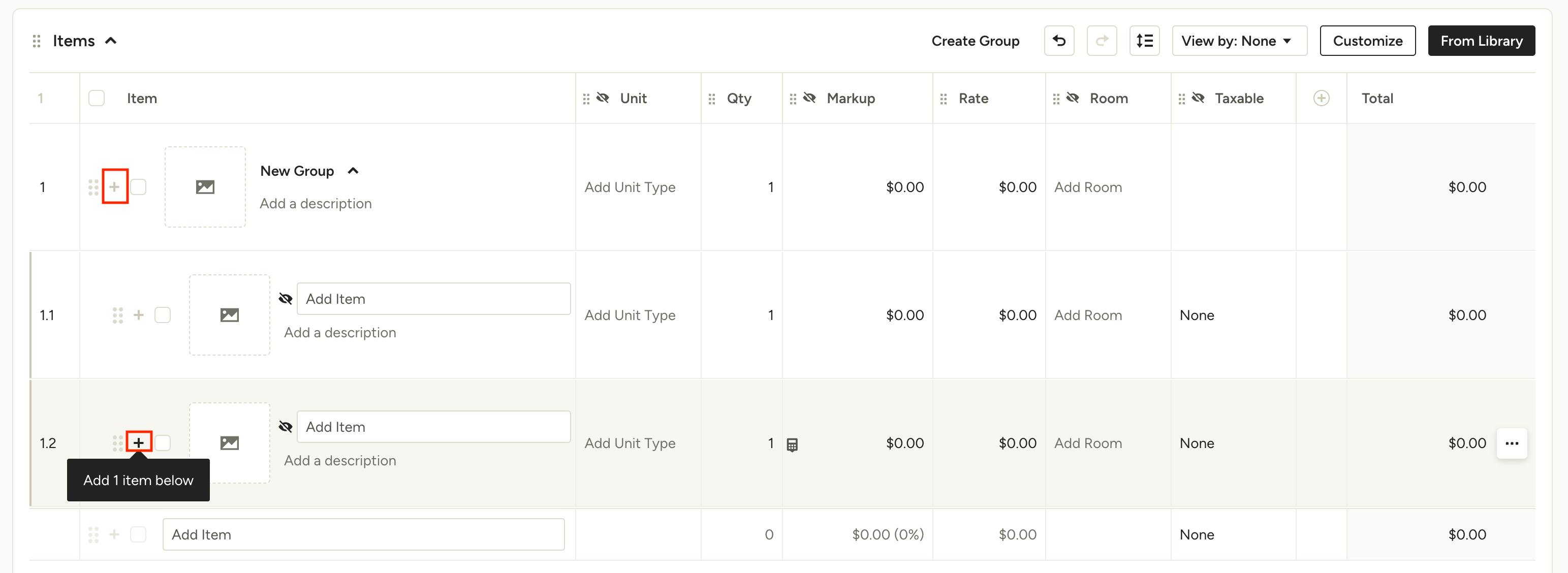
Make sure that you are using the "Add item below" icon either on the group title or on a line item within the group (1.1, 1.2 etc) when adding an item to the group. If you want to add an existing line item to the group that is not currently grouped, you can drag and drop it into the desired group using the 6 dots to the left.
Create a Group From Existing Line Items
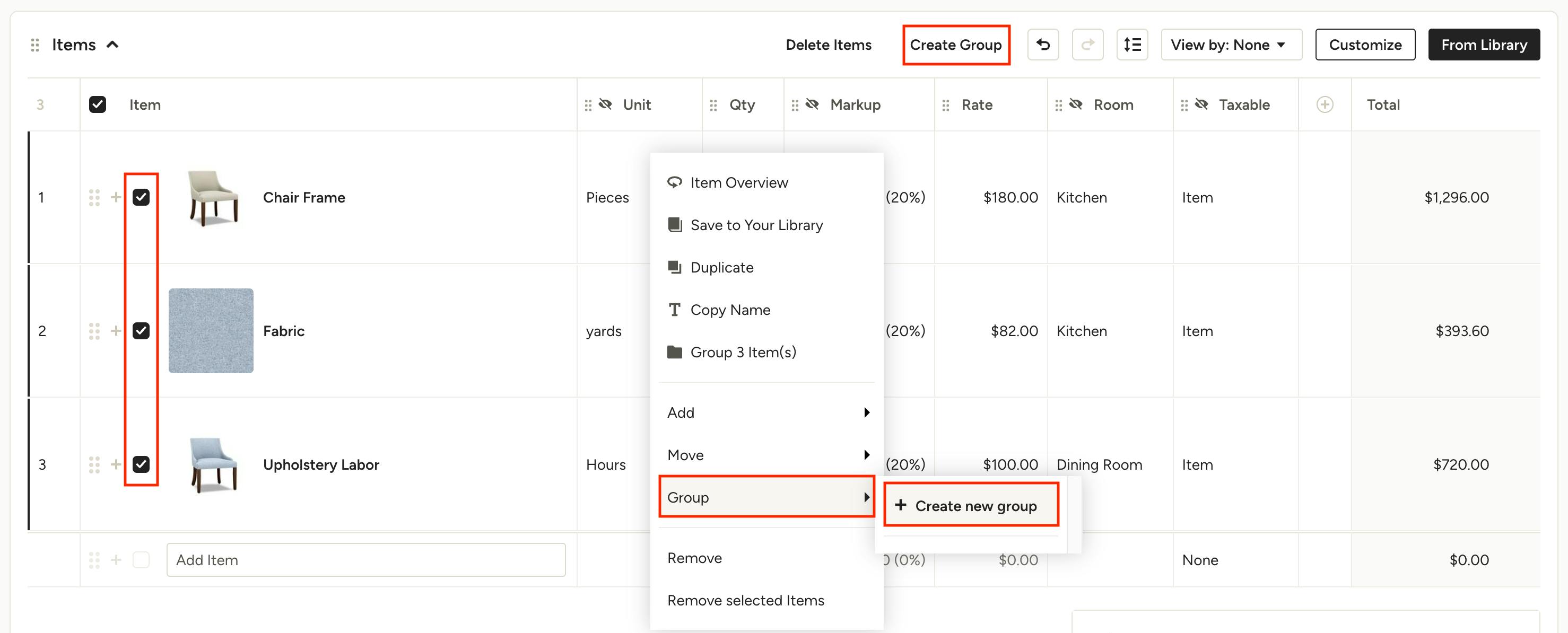
If you're working on a proposal or invoice that already contains the items you want to group, simply use the checkboxes to select the items, then click Create Group in the Items toolbar, or right-click and select +Create New Group under the Group option, type the group name and hit the enter/return key.
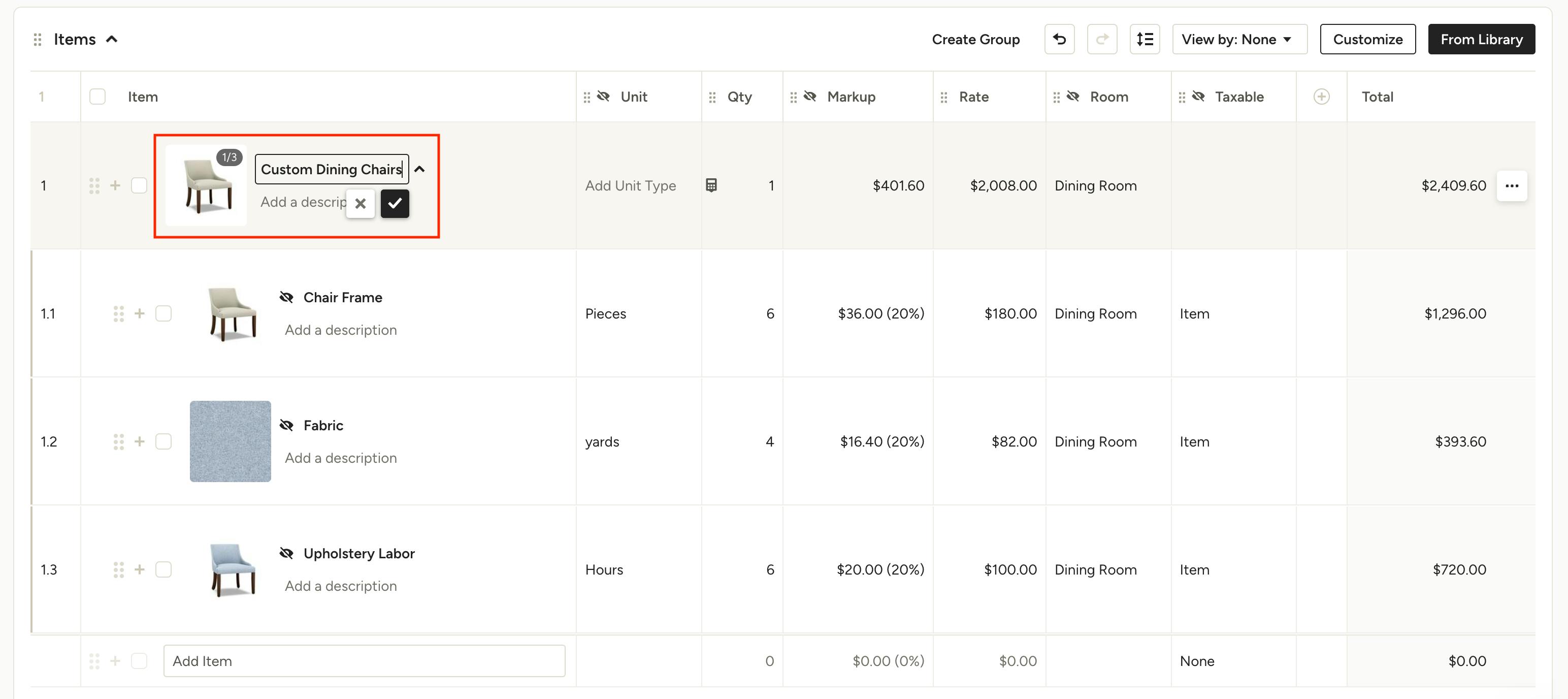
You'll see the selected items now numbered as components of the group (1.1, 1.2, 1.3 etc). You can now add a group title and description for the client, as well as click on the photo to select which one you want to use as the cover image (this is only applicable if you are using and showing photos).
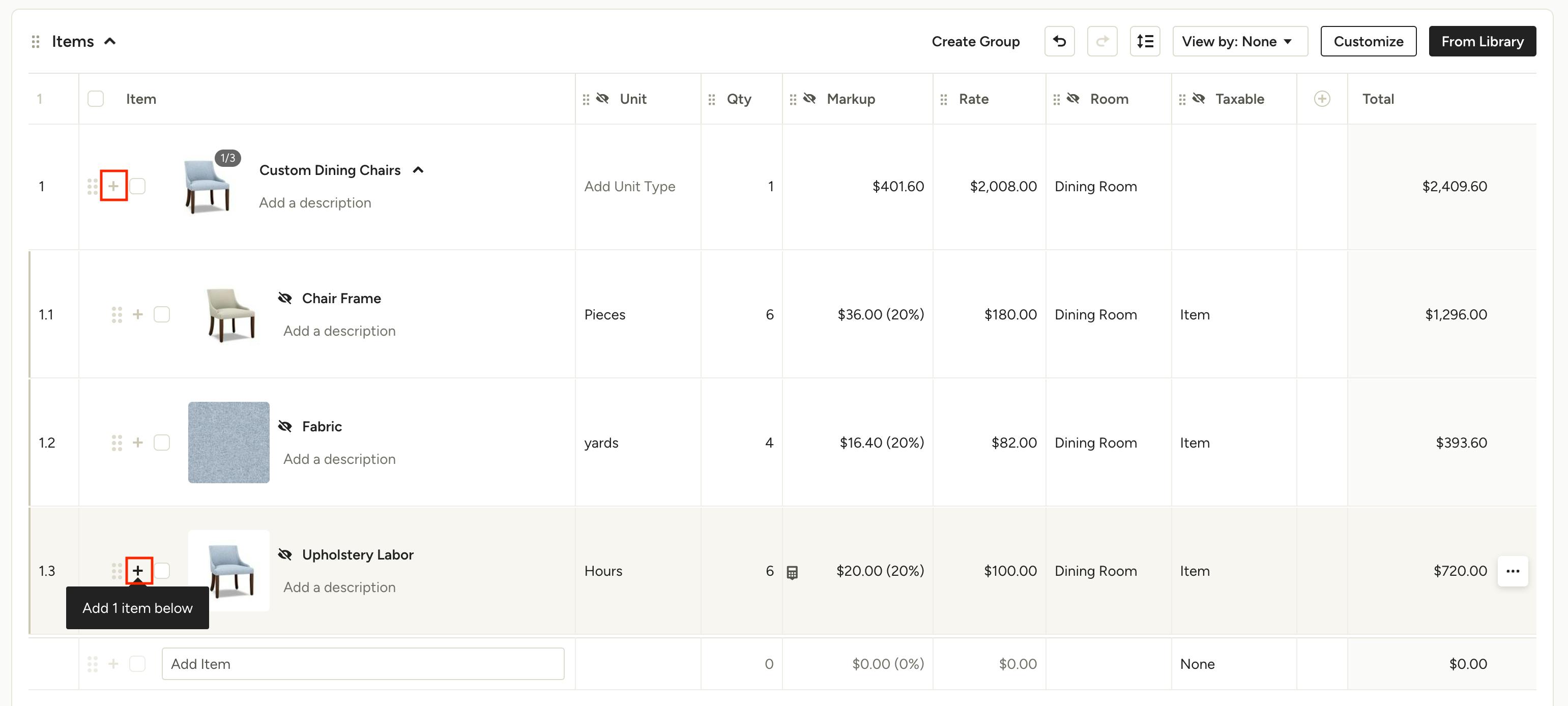
If you want to add more line items to the group, make sure that you are using the "Add item below" icon either on the group title or on a line item within the group (1.1, 1.2 etc) when adding an item to the group.
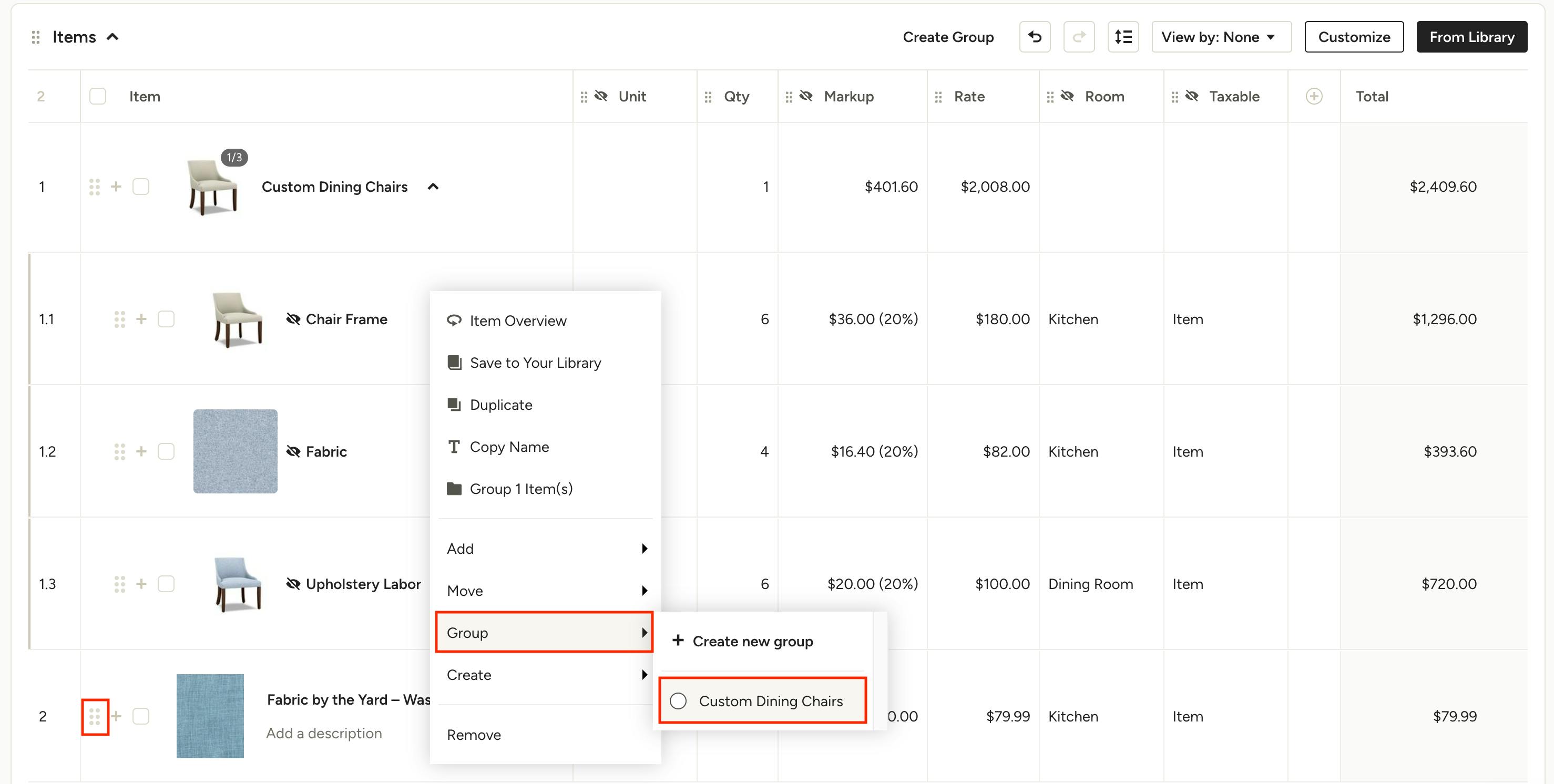
If you want to add an existing line item to the group that is not currently grouped, you can either drag and drop it into the desired group using the 6 dots to the left, or right-click the item and select the desired group under the Group option.

Adjust Quantity & Rate For Entire Group
Once you have created a group and input all the relevant unit, quantity and cost information for each component, you'll see the total group cost on the main line item. By default, the quantity for this line will be set to 1 unit. To accurately represent to the client the quantity they will be receiving and the rate per unit, hover over the Quantity column and click the calculator icon. In the pop up, make sure "Recalculate the rate" is selected (Ivy users, this will work exactly like it did in Ivy). Adjust the quantity the client will be receiving and you will see a preview of the new rate per unit. Notice the total does not change in this case.

Click Set and you will see the new quantity, rate (and any markup) adjust in the main line item.
The alternate method requires you to select "Recalculate the total cost" but is only useful in cases where the quantities of the components are for a single unit. For example, if you are adding a grouping of items for one door (2 handles, 2 hinges, 30 minutes of labour), your total group cost will reflect that of one door. If your client needs 4 doors total, you would select "Recalculate the total cost", enter 4 for the quantity, and the total would adjust to include the cost of 4 doors.
Save Groups to Library from Documents
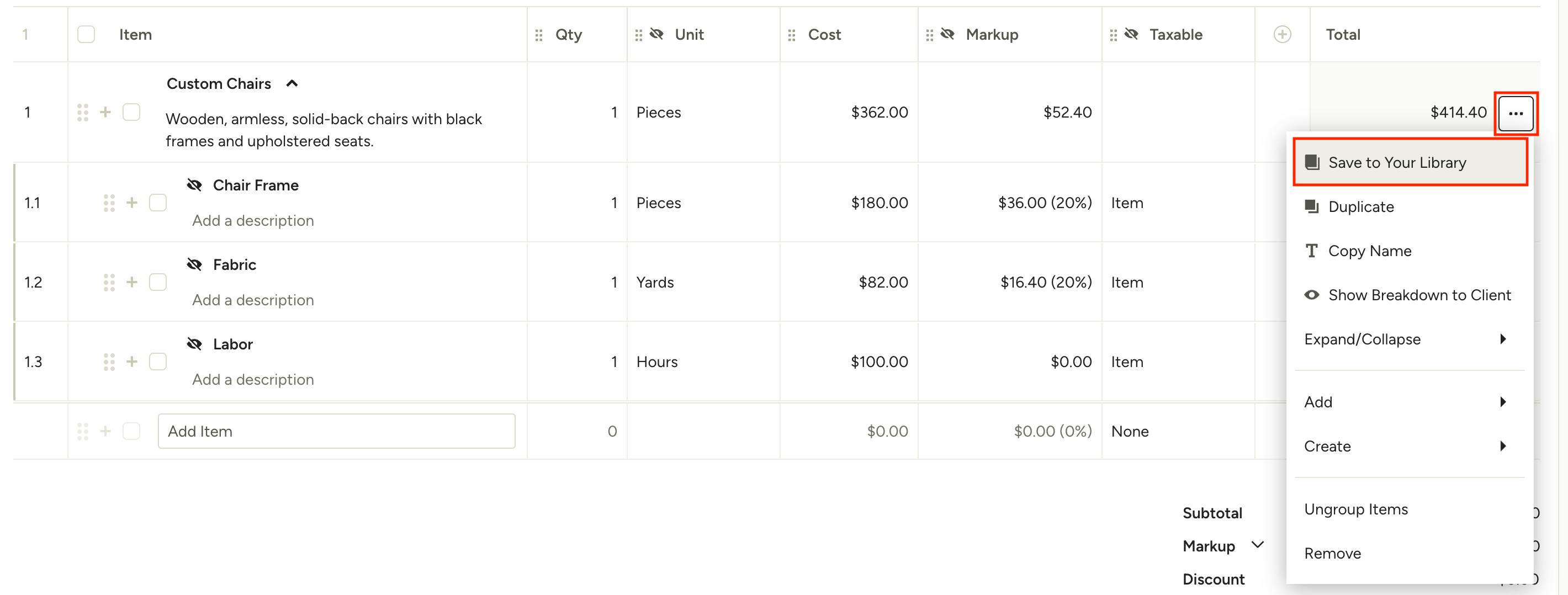
After you have created a group within a proposal or invoice, you can save it to your library for future use. To do so, click on the three dots to the right of the main group line item and select Save to Your Library. The group will now be available for use on your documents and accessible from your My Items page for edits and updates.
Show Grouped Items to The Client
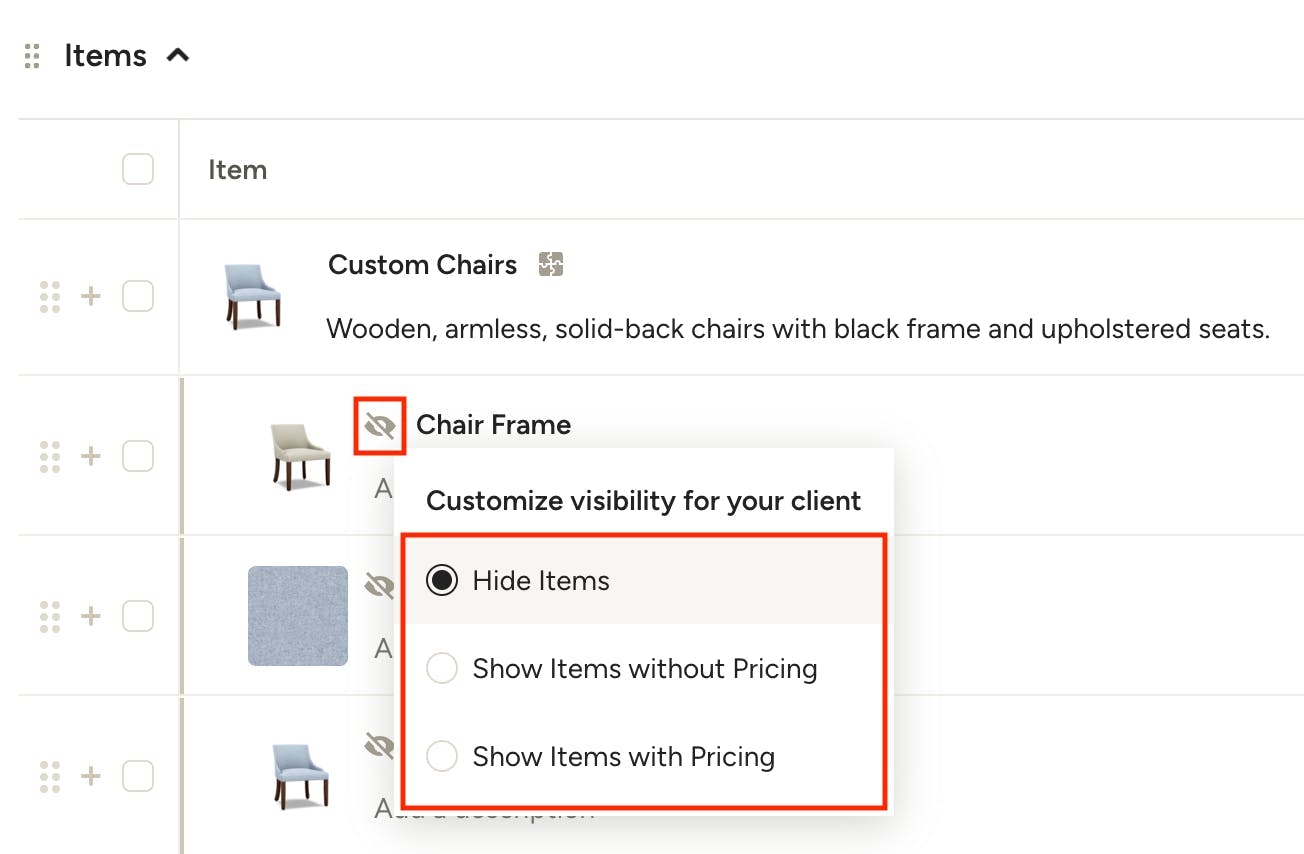
By default, the components of a group are hidden from the client's view. In the case that you want to show the grouped items to the client, all you have to do is click the eye icon on one of the line items. This will bring up your visibility options for the group, including:
- Hide Items
- Show Items without Pricing
- Show Items with Pricing
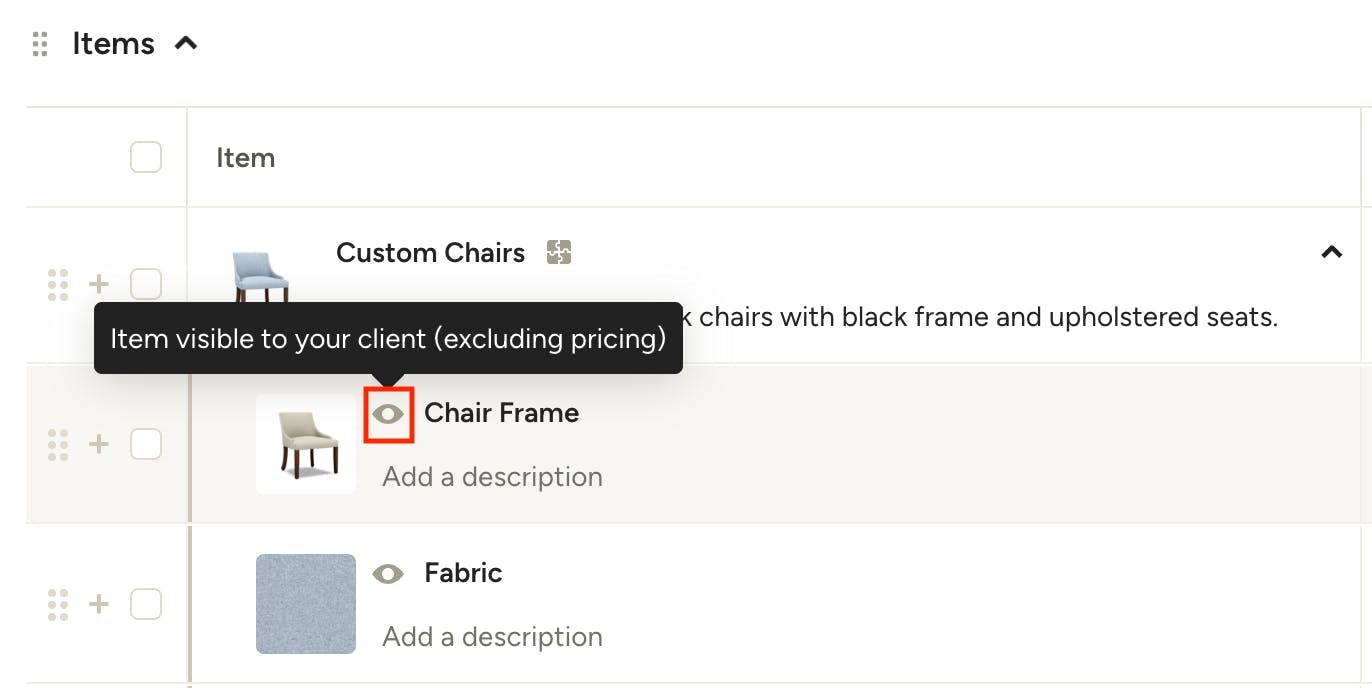
To check the client visibility at any time, hover over the eye icon to see the current settings.
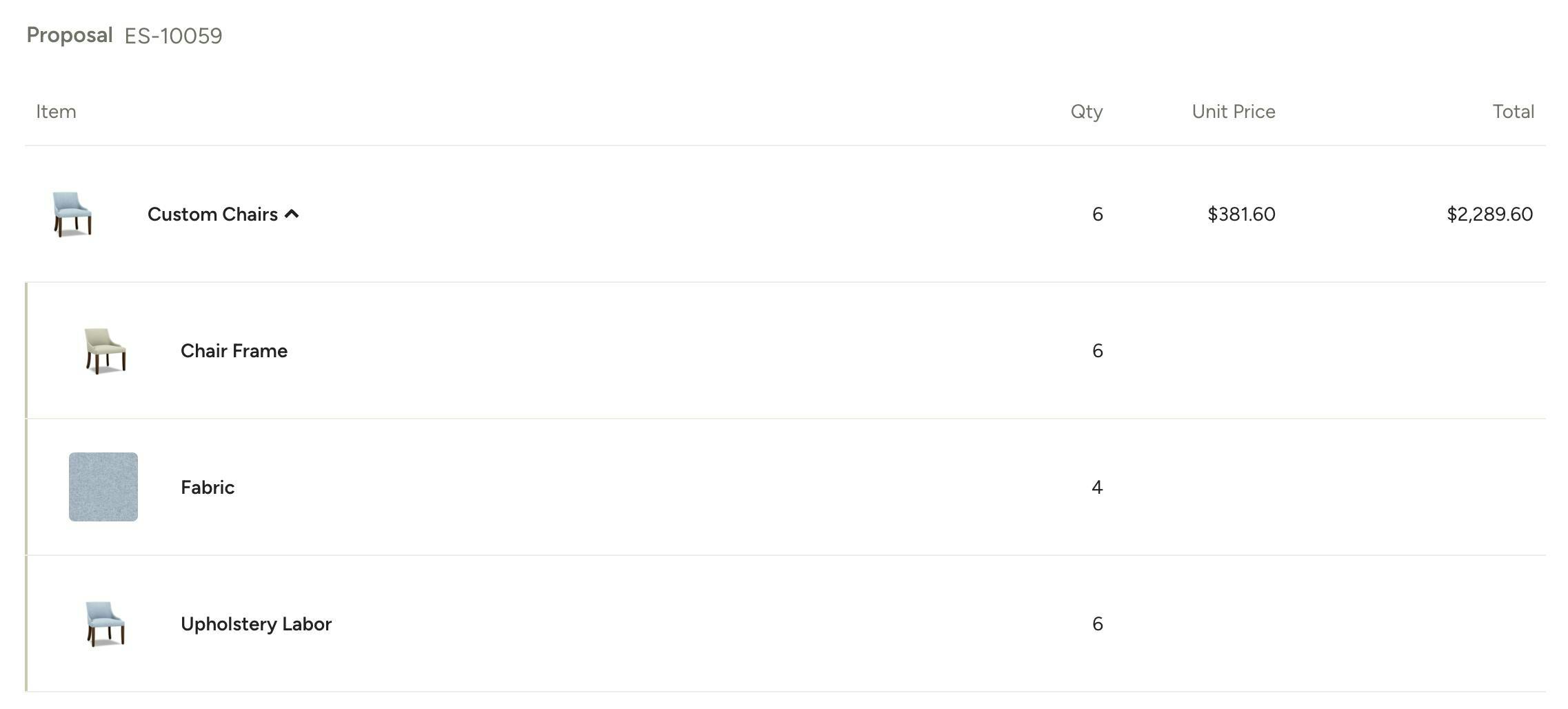
To see exactly what the client will see, click Preview at the top of the page to pull up the client view.
Create Purchase Orders from Grouped Items
When you're ready to create purchase orders for your grouped line items, you have 2 options.
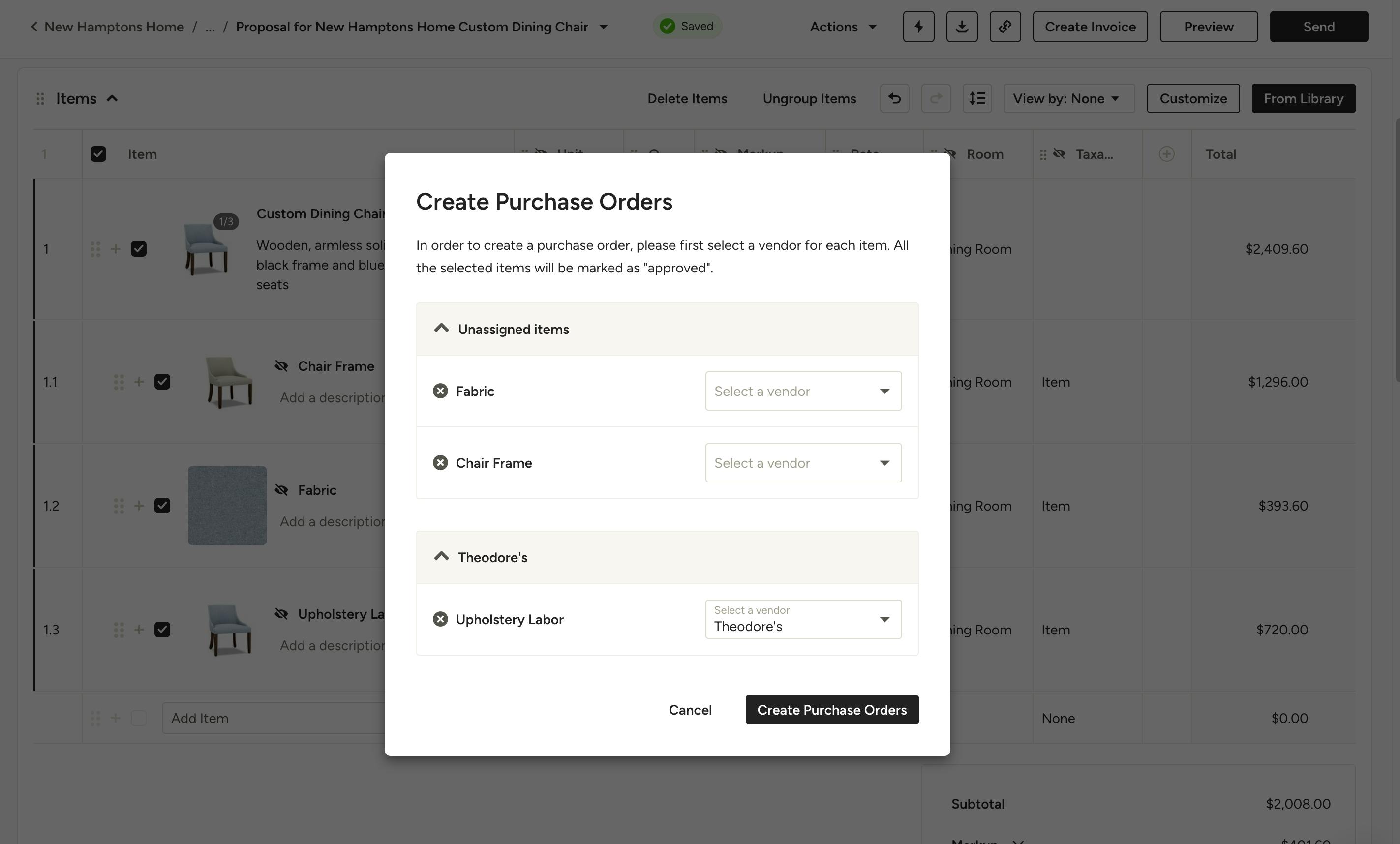
Create POs for all items at once: Select all items in the group using the checkboxes on the left, then choose Create Purchase Order(s) from the Actions menu at the top of the page. In the modal that pops up, select the relevant vendor/supplier for each item then click Create Purchase Orders. Separate POs will be created for each vendor/supplier.
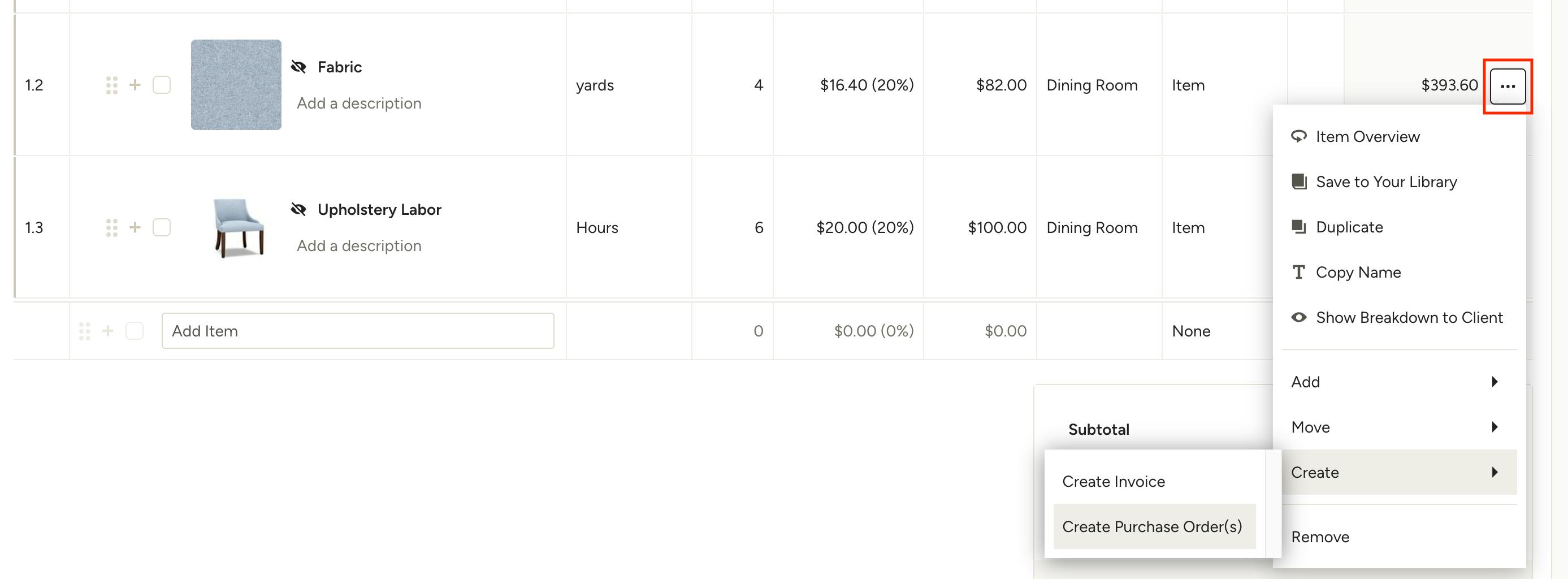
Create POs one at a time: On the line item that you wish to create a PO for, either right-click or click the three dots to the far right, and select Create > Create Purchase Order(s) from the menu. In the modal that pops up, select the relevant vendor/supplier then click Create Purchase Order.
Manage Groups
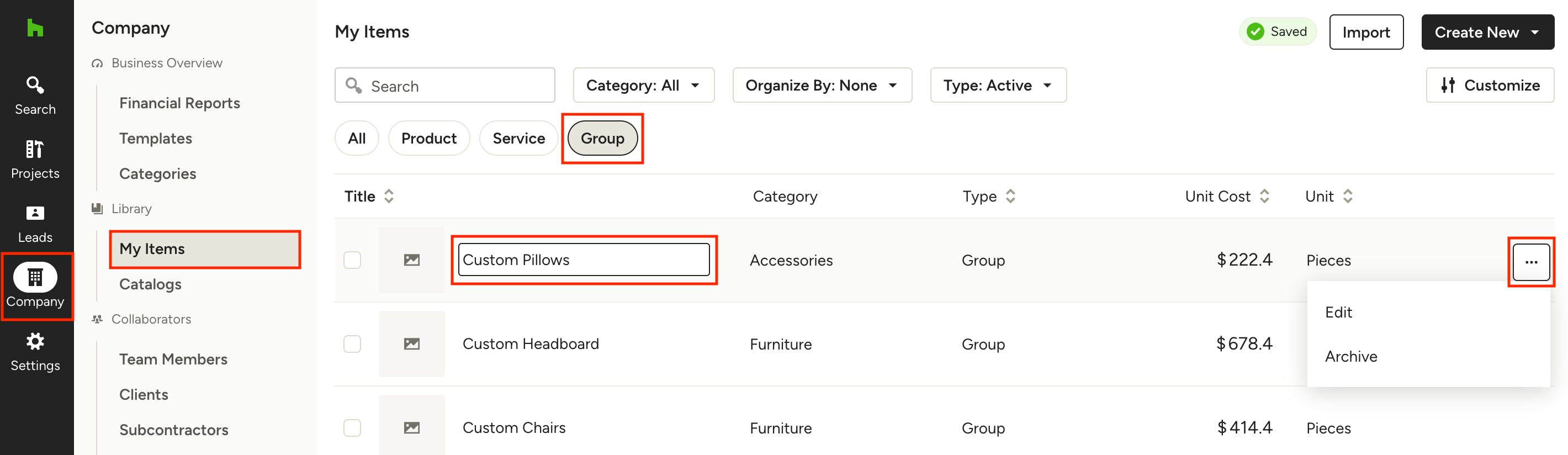
Any groups you have created and saved are accessible on your My Items page, which you can get to via the Company icon in the left navigation. Click on Group from the item types at the top to just show your Groups.
From here you can create new groups and manage existing ones, including edit, rename and archive. Simply click the three dots to the right of the group you want to manage and choose from the menu. You can also edit select group details directly in-line on the item, like Title, Category and Unit — to make additional changes you need to be in the edit view of a group.